3款免費遠端桌面軟體對比,哪一款最適合你?

Karly Chan

/

/

Updated

2025年7月15日

疫情之後,遠距辦公、遠端作業已經變得越來越普遍,選擇一款好用的遠端軟體真的非常重要。各家的遠端軟體都有自己的優勢與不足,這篇文章我們挑選了3款時下最具代表性的免費遠端軟體——分別是功能豐富的新興遠端桌面軟體DeskIn、完全免費的Chrome遠端桌面以及老牌遠端軟體TeamViewer,對比他們的優點、適合的場景和不足,看看哪一款免費遠端軟體最適合你。

第一款免費遠端桌面軟體:DeskIn

DeskIn遠端桌面是一款相對比較新的免費遠端桌面,雖然是新軟體,但是它的功能卻非常完善。被稱作Anydesk和Teamviewer的最佳替代方案。DeskIn個人版是針對個人使用者設計的軟體,除了一般的遠端連線,還有螢幕管理,遠端開機,控制安卓,語音通話等豐富的遠端協作功能,無論是遠端辦公、遠端設計、遠端遊戲、遠端技術支援還是提升效率,DeskIn都能提供完美的解決方案。

DeskIn支援最高4K60FPS,很多用過的網友和博主對DeskIn評價最高的是它的連線品質穩定,不僅延遲低,而且影像清晰度很高,使用非常流暢,是遠端辦公的不二選擇。

作爲免費遠端軟體,DeskIn免費版已經可以商用,並支援隊3個裝置進行無人值守管理,付費版更多達100太裝置。同時支援在Windows、macOS、Android、iOS以及在瀏覽器上使用。雖然功能很多,但DeskIn的使用介面和分類非常清晰,直覺,科技小白也能輕鬆上手。
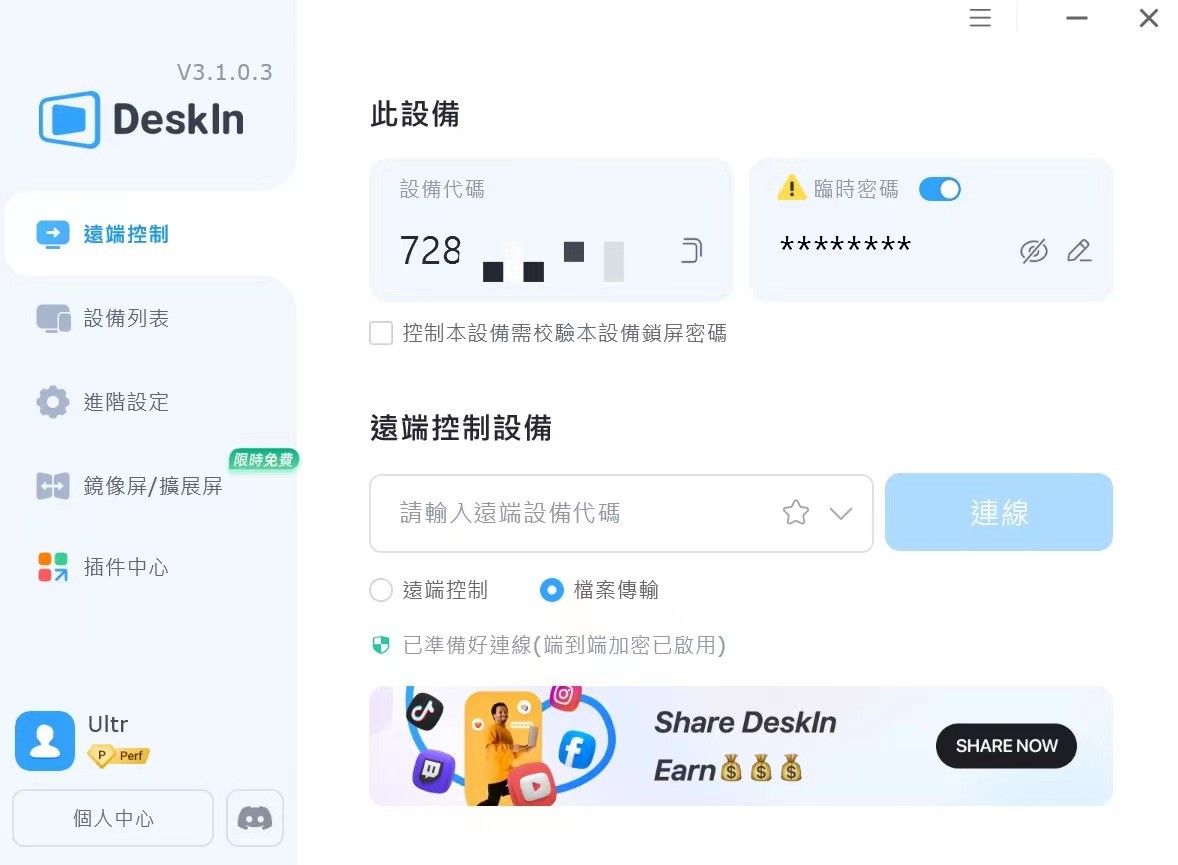
DeskIn遠端桌面介面

適用人群:

  1. 有管理多台個人/團隊裝置需求的個人或是小型企業團隊。

  2. 注重安全,需要無人值守存取遠端裝置,有存取檔案需求的使用者,

  3. 適用場景:遠端辦公、團隊協作、遠端技術支援、遠端遊戲、效率提升。

免費遠端桌面DeskIn的優點:

  1. 超高連線品質:全球200+伺服器,穩定連線不斷連,極低延時,沒有連線時長限制,

  2. 超清影像品質:支援最高4K60FPS畫質,支援4:4:4色彩採樣模式,色彩更好,更清晰

  3. 檔案傳輸快:檔案傳輸無檔案大小、類型、數量限制,一鍵拖拽傳輸,速度高達12MB/s

  4. 豐富免費進階功能:免費版即可使用即時語音童話、文字聊天窗、標記、共享剪貼簿等實時互動協作功能,還能進行螢幕延伸、鏡像投影,控制多螢幕等

  5. 直覺易用:使用無需複雜設定,介面分類清晰,能輕鬆找到想要的功能

  6. 免費可商用,超高性價比:可按月訂閲,價格低至9.9美元/月,支援同時登入100台裝置。

  7. 行動裝置功能完整:虛擬滑鼠以及快捷按鍵符合日常使用習慣,操控電腦也非常順手

  8. 支援硬編解:提高硬體使用效率,減少裝置發熱,宕機等狀況

  9. 安全度高:採用256位元加密,新裝置登入需要信箱驗證,且可以設定非同帳號登入需要手動驗證、設定黑白名單等等方式,避免資訊泄露

  10. 客戶服務:免費版也提供技術支援服務

缺點:

  1. 暫不支援Linux系統和Google TV

💻立即下載DeskIn遠端桌面體驗!

第二款免費遠端桌面軟體:Google Chrome遠端桌面

Chrome遠端桌面也是大家比較常用的遠端桌面,它只有免費版本,可以在Chrome瀏覽器上發起遠端連線。介面只有「遠端支援」和「遠端連線」,非常簡單易用,也可以進行2GB内的檔案傳輸。對於臨時使用者來説是夠用的,但這對於長期使用,有進階需求的人來説,其功能就比較基礎,連線品質也一般,只能做一些簡單的操控。有高效能要求的「遠端支援」、「遠端設計」甚至效率提升可能不太合適。并且只遠端控制電腦,手機版本的使用也不太順手,還有使用者反饋會出現程式沒法安裝的狀況。

適用人群:

  1. 本身使用chrome瀏覽器,并且主要是在電腦上使用遠端的人群

  2. 完全不想付費,并且對於遠端連線要求不高,只是偶爾需要連線並進行一些簡單操作或檔案存取的使用者。

優點:

  1. 界面簡潔,使用方便簡單

  2. 完全免費軟體

  3. 支援Windows、macOS、Linux、Android、iOS等操作系統,可在瀏覽器發起遠端連線

缺點:

  1. 連線品質一般:色彩、解析度相對模糊,且只能自動調整傳輸品質

  2. 功能有限:缺乏拖拽檔案傳輸、即時互動、多裝置連線、快捷按鍵、螢幕管理等功能,手機操作不太順手,對於遠端支援和協助不太友好。

  3. 裝置限制:無法控制行動裝置,而且一次只能連線到一台電腦

  4. 存在安全問題:依賴Google帳號進行身份驗證,一旦Google帳號泄露可能帶來風險,沒有隱私螢幕,遠端操作可能會被看到。

  5. 手機版本陽春:不太適合用手機遠端電腦的場景

  6. 沒有客服支援:遇到問題只能查詢官方的檔案或寄信,比較麻煩

第三款免費遠端桌面軟體:TeamViewer

TeamViewer是一款老牌的遠端桌面軟體,不僅支援的裝置系統非常完善,安全性和使用起來的流暢度都不錯,具備的功能很比較完善,相信接觸過遠端桌面軟體的人都使用過它。但Teamviewer更多的是一款針對企業使用者的軟體,他的付費版本價格非常高,免費版則經常會出現被誤判商用,無法使用的狀況。付費版本中的一些功能也是偏向管理的功能,對於普通的個人使用者可能不一定能用上。
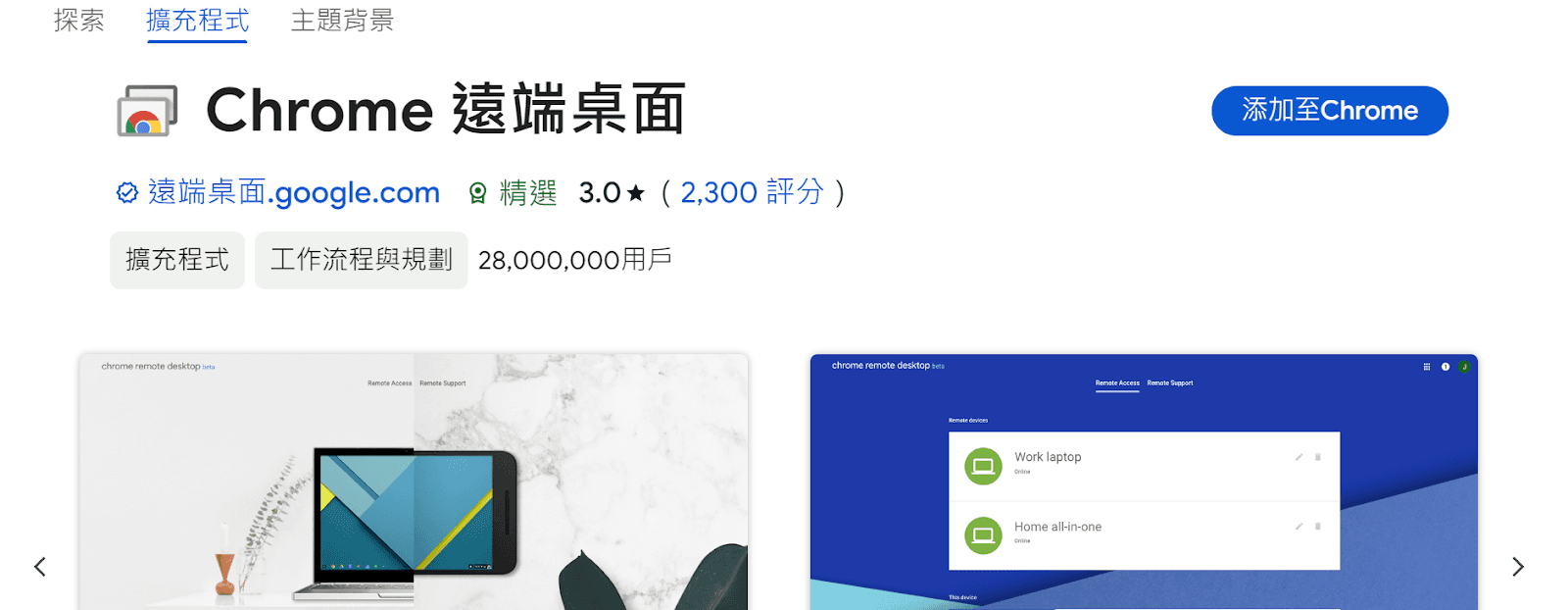
chrome遠端桌面

適用人群:

  1. 不想付費,只偶爾在電腦上使用來簡單辦公的人群可選擇免費版。

  2. 有預算,對於裝置管理要求較高的大型企業。

優點:

  1. 支援的系統完整:支援在Windows、macOS、Linux、iOS、Android、Chrome OS以及通用Windows平台(UWP)、BlackBerry上使用

  2. 連線品質較好,偶爾會出現斷連和卡頓的的狀況,尤其是行動裝置,但整體還算穩定

  3. 整體的管理功能和協作功能功能比較完善,同時可連線最多3台電腦。

  4. 安全性較高:使用RSA 公開金鑰/私密金鑰交換和AES(256 位)會話加密來保護

缺點:

  1. 免費版使用限制:免費版不得商用,經常會被誤檢測為商用會跳提醒或是斷連無法使用。

  2. 費用昂貴:Teamview的付費版價格很高,且只能按年訂閲

  3. 界面不夠友善:使用界面偏IT向,對於3C小白或是初用遠端裝置的使用者不太友善,行動裝置上的操作也較少,使用起來不太順手

  4. 程式繁多:行動裝置被控需要單獨安裝另外一個程式,比較麻煩。

  5. 檔案傳輸速度慢:對比過多個遠端軟體,Teamviewer的檔案傳輸速度可以説是非常慢,而且對於檔案大小有限制,每次只能傳輸4GB或以下的檔案。

  6. 免費版本無客服支援:若遇到問題,只能自己查看官方網站的知識庫、社群論壇、FAQ 等

3款免費遠端桌面軟體對比

爲了更直觀地對比這幾款免費遠端軟體,以下整理了一個表格分別對比了DeskIn、TeamViewer還有Chrome的免費版權益和效能。DeskIn遠端桌面在各方面的表現都非常突出,而且免費版就附有更多的進階功能,是更高性價比的選擇。

💻立即下載DeskIn遠端桌面體驗!

免費版


DeskIn

TeamViewer

Chrome遠端

無人值守裝置

3台

3台

不限

解析度

HD 30fps

自動調整

自動調整

支援系統

Windows、macOS、Android、iOS

Windows、macOS、Linux、Android、iOS

Windows、macOS、Linux、Android、iOS

控制安卓

可單獨購買插件14.9美金/年

需額外加400美金/年

需額外安裝多一個軟體

檔案傳輸

無大小、格式、數量限制

最高12MB/s傳輸速度

低速傳輸

單個檔案<4GB

低速傳輸

單個檔案<2GB

隐私萤幕

語音通話

螢幕拓展

螢幕投影

額外通道

33.9美金/年

249美金/年

700美金/年

裝置管理

客服支援

結論:即刻開始免費使用DeskIn遠端軟體

本文介紹了三款比較常見且具有代表性的遠端桌面軟體——DeskIn、Chrome遠端桌面、TeamViewer的優缺點以及適合的人群。如果你對遠端要求不高,要一個最簡單的遠端桌面,Chrome遠端可以基本滿足你的需求,如果你是個人使用者或小型企業使用者,希望有一個免費可商用可管理多個遠端裝置,并且功能更多、連線品質更好的遠端軟體,DeskIn遠端桌面絕對是你最好的選擇,立即下載體驗吧!



疫情之後,遠距辦公、遠端作業已經變得越來越普遍,選擇一款好用的遠端軟體真的非常重要。各家的遠端軟體都有自己的優勢與不足,這篇文章我們挑選了3款時下最具代表性的免費遠端軟體——分別是功能豐富的新興遠端桌面軟體DeskIn、完全免費的Chrome遠端桌面以及老牌遠端軟體TeamViewer,對比他們的優點、適合的場景和不足,看看哪一款免費遠端軟體最適合你。

第一款免費遠端桌面軟體:DeskIn

DeskIn遠端桌面是一款相對比較新的免費遠端桌面,雖然是新軟體,但是它的功能卻非常完善。被稱作Anydesk和Teamviewer的最佳替代方案。DeskIn個人版是針對個人使用者設計的軟體,除了一般的遠端連線,還有螢幕管理,遠端開機,控制安卓,語音通話等豐富的遠端協作功能,無論是遠端辦公、遠端設計、遠端遊戲、遠端技術支援還是提升效率,DeskIn都能提供完美的解決方案。

DeskIn支援最高4K60FPS,很多用過的網友和博主對DeskIn評價最高的是它的連線品質穩定,不僅延遲低,而且影像清晰度很高,使用非常流暢,是遠端辦公的不二選擇。

作爲免費遠端軟體,DeskIn免費版已經可以商用,並支援隊3個裝置進行無人值守管理,付費版更多達100太裝置。同時支援在Windows、macOS、Android、iOS以及在瀏覽器上使用。雖然功能很多,但DeskIn的使用介面和分類非常清晰,直覺,科技小白也能輕鬆上手。

DeskIn遠端桌面介面

適用人群:

  1. 有管理多台個人/團隊裝置需求的個人或是小型企業團隊。

  2. 注重安全,需要無人值守存取遠端裝置,有存取檔案需求的使用者,

  3. 適用場景:遠端辦公、團隊協作、遠端技術支援、遠端遊戲、效率提升。

免費遠端桌面DeskIn的優點:

  1. 超高連線品質:全球200+伺服器,穩定連線不斷連,極低延時,沒有連線時長限制,

  2. 超清影像品質:支援最高4K60FPS畫質,支援4:4:4色彩採樣模式,色彩更好,更清晰

  3. 檔案傳輸快:檔案傳輸無檔案大小、類型、數量限制,一鍵拖拽傳輸,速度高達12MB/s

  4. 豐富免費進階功能:免費版即可使用即時語音童話、文字聊天窗、標記、共享剪貼簿等實時互動協作功能,還能進行螢幕延伸、鏡像投影,控制多螢幕等

  5. 直覺易用:使用無需複雜設定,介面分類清晰,能輕鬆找到想要的功能

  6. 免費可商用,超高性價比:可按月訂閲,價格低至9.9美元/月,支援同時登入100台裝置。

  7. 行動裝置功能完整:虛擬滑鼠以及快捷按鍵符合日常使用習慣,操控電腦也非常順手

  8. 支援硬編解:提高硬體使用效率,減少裝置發熱,宕機等狀況

  9. 安全度高:採用256位元加密,新裝置登入需要信箱驗證,且可以設定非同帳號登入需要手動驗證、設定黑白名單等等方式,避免資訊泄露

  10. 客戶服務:免費版也提供技術支援服務

缺點:

  1. 暫不支援Linux系統和Google TV

💻立即下載DeskIn遠端桌面體驗!

第二款免費遠端桌面軟體:Google Chrome遠端桌面

Chrome遠端桌面也是大家比較常用的遠端桌面,它只有免費版本,可以在Chrome瀏覽器上發起遠端連線。介面只有「遠端支援」和「遠端連線」,非常簡單易用,也可以進行2GB内的檔案傳輸。對於臨時使用者來説是夠用的,但這對於長期使用,有進階需求的人來説,其功能就比較基礎,連線品質也一般,只能做一些簡單的操控。有高效能要求的「遠端支援」、「遠端設計」甚至效率提升可能不太合適。并且只遠端控制電腦,手機版本的使用也不太順手,還有使用者反饋會出現程式沒法安裝的狀況。

適用人群:

  1. 本身使用chrome瀏覽器,并且主要是在電腦上使用遠端的人群

  2. 完全不想付費,并且對於遠端連線要求不高,只是偶爾需要連線並進行一些簡單操作或檔案存取的使用者。

優點:

  1. 界面簡潔,使用方便簡單

  2. 完全免費軟體

  3. 支援Windows、macOS、Linux、Android、iOS等操作系統,可在瀏覽器發起遠端連線

缺點:

  1. 連線品質一般:色彩、解析度相對模糊,且只能自動調整傳輸品質

  2. 功能有限:缺乏拖拽檔案傳輸、即時互動、多裝置連線、快捷按鍵、螢幕管理等功能,手機操作不太順手,對於遠端支援和協助不太友好。

  3. 裝置限制:無法控制行動裝置,而且一次只能連線到一台電腦

  4. 存在安全問題:依賴Google帳號進行身份驗證,一旦Google帳號泄露可能帶來風險,沒有隱私螢幕,遠端操作可能會被看到。

  5. 手機版本陽春:不太適合用手機遠端電腦的場景

  6. 沒有客服支援:遇到問題只能查詢官方的檔案或寄信,比較麻煩

第三款免費遠端桌面軟體:TeamViewer

TeamViewer是一款老牌的遠端桌面軟體,不僅支援的裝置系統非常完善,安全性和使用起來的流暢度都不錯,具備的功能很比較完善,相信接觸過遠端桌面軟體的人都使用過它。但Teamviewer更多的是一款針對企業使用者的軟體,他的付費版本價格非常高,免費版則經常會出現被誤判商用,無法使用的狀況。付費版本中的一些功能也是偏向管理的功能,對於普通的個人使用者可能不一定能用上。

chrome遠端桌面

適用人群:

  1. 不想付費,只偶爾在電腦上使用來簡單辦公的人群可選擇免費版。

  2. 有預算,對於裝置管理要求較高的大型企業。

優點:

  1. 支援的系統完整:支援在Windows、macOS、Linux、iOS、Android、Chrome OS以及通用Windows平台(UWP)、BlackBerry上使用

  2. 連線品質較好,偶爾會出現斷連和卡頓的的狀況,尤其是行動裝置,但整體還算穩定

  3. 整體的管理功能和協作功能功能比較完善,同時可連線最多3台電腦。

  4. 安全性較高:使用RSA 公開金鑰/私密金鑰交換和AES(256 位)會話加密來保護

缺點:

  1. 免費版使用限制:免費版不得商用,經常會被誤檢測為商用會跳提醒或是斷連無法使用。

  2. 費用昂貴:Teamview的付費版價格很高,且只能按年訂閲

  3. 界面不夠友善:使用界面偏IT向,對於3C小白或是初用遠端裝置的使用者不太友善,行動裝置上的操作也較少,使用起來不太順手

  4. 程式繁多:行動裝置被控需要單獨安裝另外一個程式,比較麻煩。

  5. 檔案傳輸速度慢:對比過多個遠端軟體,Teamviewer的檔案傳輸速度可以説是非常慢,而且對於檔案大小有限制,每次只能傳輸4GB或以下的檔案。

  6. 免費版本無客服支援:若遇到問題,只能自己查看官方網站的知識庫、社群論壇、FAQ 等

3款免費遠端桌面軟體對比

爲了更直觀地對比這幾款免費遠端軟體,以下整理了一個表格分別對比了DeskIn、TeamViewer還有Chrome的免費版權益和效能。DeskIn遠端桌面在各方面的表現都非常突出,而且免費版就附有更多的進階功能,是更高性價比的選擇。

💻立即下載DeskIn遠端桌面體驗!

免費版


DeskIn

TeamViewer

Chrome遠端

無人值守裝置

3台

3台

不限

解析度

HD 30fps

自動調整

自動調整

支援系統

Windows、macOS、Android、iOS

Windows、macOS、Linux、Android、iOS

Windows、macOS、Linux、Android、iOS

控制安卓

可單獨購買插件14.9美金/年

需額外加400美金/年

需額外安裝多一個軟體

檔案傳輸

無大小、格式、數量限制

最高12MB/s傳輸速度

低速傳輸

單個檔案<4GB

低速傳輸

單個檔案<2GB

隐私萤幕

語音通話

螢幕拓展

螢幕投影

額外通道

33.9美金/年

249美金/年

700美金/年

裝置管理

客服支援

結論:即刻開始免費使用DeskIn遠端軟體

本文介紹了三款比較常見且具有代表性的遠端桌面軟體——DeskIn、Chrome遠端桌面、TeamViewer的優缺點以及適合的人群。如果你對遠端要求不高,要一個最簡單的遠端桌面,Chrome遠端可以基本滿足你的需求,如果你是個人使用者或小型企業使用者,希望有一個免費可商用可管理多個遠端裝置,并且功能更多、連線品質更好的遠端軟體,DeskIn遠端桌面絕對是你最好的選擇,立即下載體驗吧!


Play x Work
All at Once

限時優惠 9.9 - 9.16

限時優惠 9.9 - 9.16

DeskIn Remote Game

only $14.32 USD 🎉 Limited on July 16-31

Add promo code: deskinsummer1

DeskIn 性能版
年付省超過70%
每月只要 $12.49 USD
請輸入折扣碼:DESKIN50

DeskIn 性能版
年付省超過70%
每月只要 $12.49 USD
請輸入折扣碼:DESKIN50

章節目錄

限時優惠 9.9 - 9.16

DeskIn 性能版
年付省超過70%
每月只要 $12.49 USD
請輸入折扣碼:DESKIN50

DeskIn 性能版
年付省超過70%
每月只要 $12.49 USD
請輸入折扣碼:DESKIN50

Developers work smarter with remote desktop

How Remote Desktop Can Help App and Game Developers Work Smarter

In today’s fast-growing digital era, companies are constantly building applications to simplify workflows and boost productivity. From software developers to game studios, the demand for remote access solutions is skyrocketing. Teams need tools that allow them to work seamlessly across different locations while keeping efficiency and collaboration high.

DeskIn: High-Performance Remote Access for Every Need

One of the best solutions for remote access is DeskIn—a remote desktop tool designed to deliver top-tier performance for professionals, developers, and even gamers. Unlike basic remote desktop tools, DeskIn is built for multi-purpose use. Whether you’re debugging an app, managing a design project, or testing games, DeskIn ensures smooth remote access without lag or downtime. With powerful servers, DeskIn provides up to 144fps in 2K true color, giving you a real-time experience that feels just like working on your main machine.

In this article, we’ll explore how DeskIn can simplify development, enhance collaboration, and cut costs for teams who rely heavily on remote access.

Why DeskIn Remote Access Stands Out for Developers & Game Studios

In game and app development, every detail matters. DeskIn equips teams with the essential tools to achieve smooth and secure remote access:

  1. 2K True Color Mirroring & Extending
    Accurate visuals are critical for design and testing. With 2K mirroring and extending, developers can enjoy crystal-clear quality through remote access, making it easy to review graphics, UI, and animations as if they were working directly on a high-end workstation.

  2. Root-Free Android Control
    DeskIn offers remote access to Android devices without requiring root. This makes it perfect for mobile app developers who need to test applications safely and quickly, avoiding complicated setup or risks.

  3. Ultra-Low Latency & Fast File Transfer
    With less than 40ms latency, DeskIn ensures your remote access feels instant—ideal for real-time debugging or game testing. On top of that, DeskIn enables file transfer up to 12 MB/s, so moving large project files across devices is fast and effortless.

  4. Scale Up to 100 Devices
    Teams often need to manage multiple workstations. DeskIn supports remote access for up to 100 devices under one ecosystem, making it easy to scale operations for larger development teams or studios.

  5. Enterprise-Grade Security
    Security is non-negotiable in remote access. DeskIn protects all connections with 256-bit encryption, the same standard used in financial systems, ensuring sensitive projects and client data remain safe at all times.

  6. Cost Efficiency & Flexibility
    With DeskIn, teams no longer need high-end hardware for every member. Even from a lightweight laptop or tablet, users can access powerful workstations remotely. This flexibility reduces costs without sacrificing performance, making remote access both effective and economical.

Conclusion

DeskIn is more than just a remote desktop—it’s a complete remote access solution designed to meet modern productivity needs. From ultra-low latency and secure connections to Android control and large-scale device support, DeskIn empowers developers, IT teams, and creative professionals to work anywhere, anytime.

For application developers, game studios, and professionals looking for reliable remote access, DeskIn offers the perfect balance of speed, security, and cost efficiency.

Get start your DeskIn remote access

Developers work smarter with remote desktop

How Remote Desktop Can Help App and Game Developers Work Smarter

In today’s fast-growing digital era, companies are constantly building applications to simplify workflows and boost productivity. From software developers to game studios, the demand for remote access solutions is skyrocketing. Teams need tools that allow them to work seamlessly across different locations while keeping efficiency and collaboration high.

DeskIn: High-Performance Remote Access for Every Need

One of the best solutions for remote access is DeskIn—a remote desktop tool designed to deliver top-tier performance for professionals, developers, and even gamers. Unlike basic remote desktop tools, DeskIn is built for multi-purpose use. Whether you’re debugging an app, managing a design project, or testing games, DeskIn ensures smooth remote access without lag or downtime. With powerful servers, DeskIn provides up to 144fps in 2K true color, giving you a real-time experience that feels just like working on your main machine.

In this article, we’ll explore how DeskIn can simplify development, enhance collaboration, and cut costs for teams who rely heavily on remote access.

Why DeskIn Remote Access Stands Out for Developers & Game Studios

In game and app development, every detail matters. DeskIn equips teams with the essential tools to achieve smooth and secure remote access:

  1. 2K True Color Mirroring & Extending
    Accurate visuals are critical for design and testing. With 2K mirroring and extending, developers can enjoy crystal-clear quality through remote access, making it easy to review graphics, UI, and animations as if they were working directly on a high-end workstation.

  2. Root-Free Android Control
    DeskIn offers remote access to Android devices without requiring root. This makes it perfect for mobile app developers who need to test applications safely and quickly, avoiding complicated setup or risks.

  3. Ultra-Low Latency & Fast File Transfer
    With less than 40ms latency, DeskIn ensures your remote access feels instant—ideal for real-time debugging or game testing. On top of that, DeskIn enables file transfer up to 12 MB/s, so moving large project files across devices is fast and effortless.

  4. Scale Up to 100 Devices
    Teams often need to manage multiple workstations. DeskIn supports remote access for up to 100 devices under one ecosystem, making it easy to scale operations for larger development teams or studios.

  5. Enterprise-Grade Security
    Security is non-negotiable in remote access. DeskIn protects all connections with 256-bit encryption, the same standard used in financial systems, ensuring sensitive projects and client data remain safe at all times.

  6. Cost Efficiency & Flexibility
    With DeskIn, teams no longer need high-end hardware for every member. Even from a lightweight laptop or tablet, users can access powerful workstations remotely. This flexibility reduces costs without sacrificing performance, making remote access both effective and economical.

Conclusion

DeskIn is more than just a remote desktop—it’s a complete remote access solution designed to meet modern productivity needs. From ultra-low latency and secure connections to Android control and large-scale device support, DeskIn empowers developers, IT teams, and creative professionals to work anywhere, anytime.

For application developers, game studios, and professionals looking for reliable remote access, DeskIn offers the perfect balance of speed, security, and cost efficiency.

Get start your DeskIn remote access

透過遠端桌面進行牙科使用

利用 DeskIn 實現無縫遠程存取:Village Denture Studio 如何轉型其牙科 CAD 工作流程

在今天快速變遷的數位環境中,無縫跨地域工作的能力已變得至關重要——尤其對於依賴高性能設計軟體的行業來說。對於牙科實驗室而言,精度和效率至關重要,找到合適的遠端存取解決方案可以產生顯著影響。

背景

Village Denture Studio 是一家專業牙科實驗室,由四位臨床牙科技術員(Clinical Dental Technicians)和一位專門從事牙科 CAD 設計的技術員組成。由於五位成員需在不同診所、不同時間共用 CAD 工作站,遠程存取設計工作站的需求日益凸顯,提升工作流程與生產效率成為當務之急。

挑戰

團隊最初使用 Splashtop Pro 進行遠程存取,但在操作精細的 CAD 設計時,常遭遇延遲與不順暢的問題,影響工作流暢度與效率。

實施過程

他們為所有 CAD 個人電腦安裝 DeskIn 軟體,使技術員能透過家用電腦遠程操作。在成員出差期間,亦能從不同裝置(包括 MacBook)遠程連線至 CAD PC,提升了靈活度與使用方便性。

成效

透過 DeskIn團隊能更有效率地使用 CAD 工作站,且無需受限於地點。DeskIn 的超低延遲與高度整合性讓遠端操作猶如親臨現場般順暢。無論是在家工作、出差中,或是在不同診所輪值,都能完成設計工作,無需親臨實驗室。

工作環境轉變

  • 提升可及性:技師可隨時隨地連線 CAD 系統,工作安排更加彈性,也減少通勤負擔。

  • 成本效益:無需為每位技師採購獨立 CAD 工作站,節省設備成本。

  • 改善工作生活平衡:技師能更靈活安排工作與私人時間,提升整體滿意度。

社群影響

在一次業界課程中,團隊成員向其他牙科專業人士展示 DeskIn 作為遠程工作方案,獲得熱烈迴響。許多人原本認為 CAD 軟體為 PC 專用,在 MacBook 上操作會有卡頓,但 DeskIn 的流暢性讓他們印象深刻,幾乎無法分辨遠端與本機操作。這次展示引發多位業界同行討論,希望在自家實驗所採用類似方案,凸顯 DeskIn 潛在的產業變革力。

未來展望

展望未來,DeskIn 支援該工作室的成長計畫。他們不再需要為每位成員配備 CAD PC,而是透過 DeskIn 高效且靈活地共用現有設備,優化資源配置並保持彈性。

總結而言,這個成功案例展示了 DeskIn 如何轉型 Village Denture Studio 的 CAD 設計工作流程——不僅實現遠端存取與提升效率,更支持未來擴展與工作方式的變革。


閱讀更多案例研究:

透過遠端桌面進行牙科使用

利用 DeskIn 實現無縫遠程存取:Village Denture Studio 如何轉型其牙科 CAD 工作流程

在今天快速變遷的數位環境中,無縫跨地域工作的能力已變得至關重要——尤其對於依賴高性能設計軟體的行業來說。對於牙科實驗室而言,精度和效率至關重要,找到合適的遠端存取解決方案可以產生顯著影響。

背景

Village Denture Studio 是一家專業牙科實驗室,由四位臨床牙科技術員(Clinical Dental Technicians)和一位專門從事牙科 CAD 設計的技術員組成。由於五位成員需在不同診所、不同時間共用 CAD 工作站,遠程存取設計工作站的需求日益凸顯,提升工作流程與生產效率成為當務之急。

挑戰

團隊最初使用 Splashtop Pro 進行遠程存取,但在操作精細的 CAD 設計時,常遭遇延遲與不順暢的問題,影響工作流暢度與效率。

實施過程

他們為所有 CAD 個人電腦安裝 DeskIn 軟體,使技術員能透過家用電腦遠程操作。在成員出差期間,亦能從不同裝置(包括 MacBook)遠程連線至 CAD PC,提升了靈活度與使用方便性。

成效

透過 DeskIn團隊能更有效率地使用 CAD 工作站,且無需受限於地點。DeskIn 的超低延遲與高度整合性讓遠端操作猶如親臨現場般順暢。無論是在家工作、出差中,或是在不同診所輪值,都能完成設計工作,無需親臨實驗室。

工作環境轉變

  • 提升可及性:技師可隨時隨地連線 CAD 系統,工作安排更加彈性,也減少通勤負擔。

  • 成本效益:無需為每位技師採購獨立 CAD 工作站,節省設備成本。

  • 改善工作生活平衡:技師能更靈活安排工作與私人時間,提升整體滿意度。

社群影響

在一次業界課程中,團隊成員向其他牙科專業人士展示 DeskIn 作為遠程工作方案,獲得熱烈迴響。許多人原本認為 CAD 軟體為 PC 專用,在 MacBook 上操作會有卡頓,但 DeskIn 的流暢性讓他們印象深刻,幾乎無法分辨遠端與本機操作。這次展示引發多位業界同行討論,希望在自家實驗所採用類似方案,凸顯 DeskIn 潛在的產業變革力。

未來展望

展望未來,DeskIn 支援該工作室的成長計畫。他們不再需要為每位成員配備 CAD PC,而是透過 DeskIn 高效且靈活地共用現有設備,優化資源配置並保持彈性。

總結而言,這個成功案例展示了 DeskIn 如何轉型 Village Denture Studio 的 CAD 設計工作流程——不僅實現遠端存取與提升效率,更支持未來擴展與工作方式的變革。


閱讀更多案例研究:

play gtav on mobile device

How to Play GTA V on Mobile: The Ultimate Guide for Gaming on the Go

Can you play GTA V on mobile? It's a question that haunts every mobile gamer who's ever wanted to cruise through Los Santos on their phone.

If you're tired of waiting for Rockstar to officially bring GTA V to mobile, or you've tried sketchy workarounds that left your device vulnerable, here's some good news: there's a legit way to play GTA V on your phone or tablet. And it's smoother than Franklin's driving skills.

Let me show you why playing GTA V on mobile seemed impossible — and how a smart remote gaming solution called Deskin turns your mobile device into a portable Los Santos gateway.

interface gta v on mobile device

The Reality Check: Why GTA V Mobile Doesn't Exist (Yet)

Here's the truth bomb: Rockstar Games has never released an official GTA V mobile port. Despite the massive success of GTA San Andreas and Vice City on mobile platforms, GTA V remains locked to PC, PlayStation, and Xbox.

Why? The game is massive. We're talking about a 100+ GB install with graphics that push even high-end PCs to their limits. Mobile hardware, while impressive, isn't quite ready for that level of chaos.

The numbers tell the story:

  • GTA V requires 8GB RAM minimum on PC

  • Most mobile devices have 4-8GB RAM total

  • The game's graphics engine demands dedicated GPU power that mobile chips can't match

But here's where it gets interesting. While you can't install GTA V directly on mobile, you can absolutely play it on your phone or tablet using remote gaming technology.

Method 1: Cloud Gaming Services - Rent Gaming Power

Cloud gaming flips the script entirely. Instead of using your own PC, you rent gaming power from services like GeForce NOW, Xbox Cloud Gaming, or PlayStation Now.

The appeal: No gaming PC required. Just sign up, log in through your browser or app, and start playing GTA V on virtually any device with internet.

The reality:

  • Latency issues: Even with great internet, there's noticeable input delay

  • Cost factor: Most services charge $10-20 monthly after free trials

  • Queue times: Popular games often have wait times during peak hours

  • Data usage: Streaming HD games can burn through mobile data fast

Performance stats from real users:

  • Average latency: 80-150ms (compared to 20-40ms for local remote gaming)

  • Monthly data usage: 10-15GB for casual play

  • Quality drops during peak hours (6-10 PM)

This works for casual gaming sessions, but competitive players will feel every millisecond of delay.

Method 2: Remote Gaming - Stream GTA V from Your PC

This is the golden ticket for mobile GTA V gaming. Instead of trying to cram the entire game onto your phone, you run it on a gaming PC and stream the experience to your mobile device.

How it works: Your gaming PC does all the heavy lifting — rendering graphics, processing physics, handling AI. Your mobile device becomes a smart controller and display, receiving the video stream and sending your inputs back.

What you need:

  • A gaming PC with GTA V installed

  • Stable Wi-Fi connection (5GHz recommended)

  • A remote gaming app like Deskin or Parsec

Performance reality check: With the right setup, you'll get near-native performance. I'm talking about 60fps gameplay with minimal input lag. The key is having solid internet and the right streaming tool.

The biggest advantage? You're playing the full, unmodified version of GTA V. All DLCs, all updates, all the chaos you expect from Los Santos.

Why Deskin beats the competition:

Ultra-low latency streaming: We're talking sub-40ms input lag, which is close to playing locally. That means responsive driving, accurate shooting, and smooth mission gameplay.

4K60FPS or 2K144FPS support: Your mobile device becomes a premium gaming display. Whether you're using an iPhone, iPad, or Android tablet, you get crisp, smooth visuals that do justice to GTA V's graphics.

True controller support: Connect your favorite Bluetooth controller to your mobile device and play GTA V exactly like you would on console. No awkward touch controls, no compromised gameplay.

Works anywhere: As long as you have internet, you can access your gaming PC. Beach vacation? Business trip? Lunch break? Los Santos is always a tap away.

Cross-platform magic: iPhone to Windows PC, Android to Mac, tablet to gaming rig — Deskin connects everything seamlessly.

Want to level up your entire remote gaming setup? Check out how to optimize your gaming keyboard and hotkeys for remote play to get console-level control on mobile.

Getting Started: Your Step-by-Step Setup Guide

Ready to install GTA V on mobile (sort of)? Here's how to set up remote access gaming:

What you'll need:

  • Gaming PC with GTA V installed

  • Mobile device (iOS 12+ or Android 8+)

  • Stable Wi-Fi connection on both devices

  • Deskin app (free download)

Setup process:

setting deskin
  1. Download Deskin on both your PC and mobile device

  2. Sign up or log in using the same account on both devices.

  3. On your phone, open DeskIn, go to “My Devices”, and select your PC.

  4. Enter the password to verify or approve the request manually on your PC.

  5. Tap “Control” to initiate the remote connection.

  6. Adjust resolution and frame rate in the settings for optimal performance.

  7. Launch GTA V on your phone and start playing directly on your PC screen.

  8. Connect a game controller to your mobile device for smoother and more responsive gameplay.

Pro tip: Start with 1080p60fps settings and adjust up or down based on your connection stability. You can always fine-tune later.

The whole setup takes about 10 minutes, and once it's done, launching GTA V on mobile becomes as simple as opening an app.

Performance Tips: Getting the Best Mobile GTA V Experience

Getting smooth gameplay requires the right settings. Here's what actually works:

Network optimization:

  • Use 5GHz Wi-Fi when possible

  • Keep both devices close to your router

  • Close bandwidth-heavy apps on your network

  • Consider ethernet connection for your gaming PC

Quality settings that matter:

  • Start with 1080p60fps for stable performance

  • Bump to 2K if your connection can handle it

  • Prioritize frame rate over resolution for competitive play

  • Enable hardware acceleration on both devices

Controller setup: Most Bluetooth controllers work great with Deskin. Xbox and PlayStation controllers are plug-and-play. The key is pairing the controller to your mobile device, not your PC.

Real user stats:

  • Average setup time: 8-12 minutes

  • Typical latency on good Wi-Fi: 25-35ms

  • Data usage per hour: 1-2GB on high settings

  • Battery life impact: 20-30% more drain than normal mobile gaming

Looking to maximize your setup even further? Learn how to set up dual monitors for gaming to keep Discord, maps, or streaming tools open while you play.

Is This Legal and Safe?

The big question everyone asks: is this allowed?

Short answer: Yes, completely.

You're not pirating, emulating, or modifying anything. You own GTA V on PC, you're running it on your own hardware, and you're simply viewing it on a different screen. It's like using a wireless monitor — totally legitimate.

Why it's safe:

  • No game file modifications

  • No bypass of copy protection

  • No violation of Rockstar's terms of service

  • Uses standard remote access protocols

Privacy protection: Deskin uses encrypted connections between your devices. Your gaming sessions stay private, and no data passes through third-party servers during gameplay.

Get started with Deskin today and turn any screen into your personal gateway to Los Santos. Your mobile GTA V adventure starts now.

Download Here

play gtav on mobile device

How to Play GTA V on Mobile: The Ultimate Guide for Gaming on the Go

Can you play GTA V on mobile? It's a question that haunts every mobile gamer who's ever wanted to cruise through Los Santos on their phone.

If you're tired of waiting for Rockstar to officially bring GTA V to mobile, or you've tried sketchy workarounds that left your device vulnerable, here's some good news: there's a legit way to play GTA V on your phone or tablet. And it's smoother than Franklin's driving skills.

Let me show you why playing GTA V on mobile seemed impossible — and how a smart remote gaming solution called Deskin turns your mobile device into a portable Los Santos gateway.

interface gta v on mobile device

The Reality Check: Why GTA V Mobile Doesn't Exist (Yet)

Here's the truth bomb: Rockstar Games has never released an official GTA V mobile port. Despite the massive success of GTA San Andreas and Vice City on mobile platforms, GTA V remains locked to PC, PlayStation, and Xbox.

Why? The game is massive. We're talking about a 100+ GB install with graphics that push even high-end PCs to their limits. Mobile hardware, while impressive, isn't quite ready for that level of chaos.

The numbers tell the story:

  • GTA V requires 8GB RAM minimum on PC

  • Most mobile devices have 4-8GB RAM total

  • The game's graphics engine demands dedicated GPU power that mobile chips can't match

But here's where it gets interesting. While you can't install GTA V directly on mobile, you can absolutely play it on your phone or tablet using remote gaming technology.

Method 1: Cloud Gaming Services - Rent Gaming Power

Cloud gaming flips the script entirely. Instead of using your own PC, you rent gaming power from services like GeForce NOW, Xbox Cloud Gaming, or PlayStation Now.

The appeal: No gaming PC required. Just sign up, log in through your browser or app, and start playing GTA V on virtually any device with internet.

The reality:

  • Latency issues: Even with great internet, there's noticeable input delay

  • Cost factor: Most services charge $10-20 monthly after free trials

  • Queue times: Popular games often have wait times during peak hours

  • Data usage: Streaming HD games can burn through mobile data fast

Performance stats from real users:

  • Average latency: 80-150ms (compared to 20-40ms for local remote gaming)

  • Monthly data usage: 10-15GB for casual play

  • Quality drops during peak hours (6-10 PM)

This works for casual gaming sessions, but competitive players will feel every millisecond of delay.

Method 2: Remote Gaming - Stream GTA V from Your PC

This is the golden ticket for mobile GTA V gaming. Instead of trying to cram the entire game onto your phone, you run it on a gaming PC and stream the experience to your mobile device.

How it works: Your gaming PC does all the heavy lifting — rendering graphics, processing physics, handling AI. Your mobile device becomes a smart controller and display, receiving the video stream and sending your inputs back.

What you need:

  • A gaming PC with GTA V installed

  • Stable Wi-Fi connection (5GHz recommended)

  • A remote gaming app like Deskin or Parsec

Performance reality check: With the right setup, you'll get near-native performance. I'm talking about 60fps gameplay with minimal input lag. The key is having solid internet and the right streaming tool.

The biggest advantage? You're playing the full, unmodified version of GTA V. All DLCs, all updates, all the chaos you expect from Los Santos.

Why Deskin beats the competition:

Ultra-low latency streaming: We're talking sub-40ms input lag, which is close to playing locally. That means responsive driving, accurate shooting, and smooth mission gameplay.

4K60FPS or 2K144FPS support: Your mobile device becomes a premium gaming display. Whether you're using an iPhone, iPad, or Android tablet, you get crisp, smooth visuals that do justice to GTA V's graphics.

True controller support: Connect your favorite Bluetooth controller to your mobile device and play GTA V exactly like you would on console. No awkward touch controls, no compromised gameplay.

Works anywhere: As long as you have internet, you can access your gaming PC. Beach vacation? Business trip? Lunch break? Los Santos is always a tap away.

Cross-platform magic: iPhone to Windows PC, Android to Mac, tablet to gaming rig — Deskin connects everything seamlessly.

Want to level up your entire remote gaming setup? Check out how to optimize your gaming keyboard and hotkeys for remote play to get console-level control on mobile.

Getting Started: Your Step-by-Step Setup Guide

Ready to install GTA V on mobile (sort of)? Here's how to set up remote access gaming:

What you'll need:

  • Gaming PC with GTA V installed

  • Mobile device (iOS 12+ or Android 8+)

  • Stable Wi-Fi connection on both devices

  • Deskin app (free download)

Setup process:

setting deskin
  1. Download Deskin on both your PC and mobile device

  2. Sign up or log in using the same account on both devices.

  3. On your phone, open DeskIn, go to “My Devices”, and select your PC.

  4. Enter the password to verify or approve the request manually on your PC.

  5. Tap “Control” to initiate the remote connection.

  6. Adjust resolution and frame rate in the settings for optimal performance.

  7. Launch GTA V on your phone and start playing directly on your PC screen.

  8. Connect a game controller to your mobile device for smoother and more responsive gameplay.

Pro tip: Start with 1080p60fps settings and adjust up or down based on your connection stability. You can always fine-tune later.

The whole setup takes about 10 minutes, and once it's done, launching GTA V on mobile becomes as simple as opening an app.

Performance Tips: Getting the Best Mobile GTA V Experience

Getting smooth gameplay requires the right settings. Here's what actually works:

Network optimization:

  • Use 5GHz Wi-Fi when possible

  • Keep both devices close to your router

  • Close bandwidth-heavy apps on your network

  • Consider ethernet connection for your gaming PC

Quality settings that matter:

  • Start with 1080p60fps for stable performance

  • Bump to 2K if your connection can handle it

  • Prioritize frame rate over resolution for competitive play

  • Enable hardware acceleration on both devices

Controller setup: Most Bluetooth controllers work great with Deskin. Xbox and PlayStation controllers are plug-and-play. The key is pairing the controller to your mobile device, not your PC.

Real user stats:

  • Average setup time: 8-12 minutes

  • Typical latency on good Wi-Fi: 25-35ms

  • Data usage per hour: 1-2GB on high settings

  • Battery life impact: 20-30% more drain than normal mobile gaming

Looking to maximize your setup even further? Learn how to set up dual monitors for gaming to keep Discord, maps, or streaming tools open while you play.

Is This Legal and Safe?

The big question everyone asks: is this allowed?

Short answer: Yes, completely.

You're not pirating, emulating, or modifying anything. You own GTA V on PC, you're running it on your own hardware, and you're simply viewing it on a different screen. It's like using a wireless monitor — totally legitimate.

Why it's safe:

  • No game file modifications

  • No bypass of copy protection

  • No violation of Rockstar's terms of service

  • Uses standard remote access protocols

Privacy protection: Deskin uses encrypted connections between your devices. Your gaming sessions stay private, and no data passes through third-party servers during gameplay.

Get started with Deskin today and turn any screen into your personal gateway to Los Santos. Your mobile GTA V adventure starts now.

Download Here

Developers work smarter with remote desktop

How Remote Desktop Can Help App and Game Developers Work Smarter

In today’s fast-growing digital era, companies are constantly building applications to simplify workflows and boost productivity. From software developers to game studios, the demand for remote access solutions is skyrocketing. Teams need tools that allow them to work seamlessly across different locations while keeping efficiency and collaboration high.

DeskIn: High-Performance Remote Access for Every Need

One of the best solutions for remote access is DeskIn—a remote desktop tool designed to deliver top-tier performance for professionals, developers, and even gamers. Unlike basic remote desktop tools, DeskIn is built for multi-purpose use. Whether you’re debugging an app, managing a design project, or testing games, DeskIn ensures smooth remote access without lag or downtime. With powerful servers, DeskIn provides up to 144fps in 2K true color, giving you a real-time experience that feels just like working on your main machine.

In this article, we’ll explore how DeskIn can simplify development, enhance collaboration, and cut costs for teams who rely heavily on remote access.

Why DeskIn Remote Access Stands Out for Developers & Game Studios

In game and app development, every detail matters. DeskIn equips teams with the essential tools to achieve smooth and secure remote access:

  1. 2K True Color Mirroring & Extending
    Accurate visuals are critical for design and testing. With 2K mirroring and extending, developers can enjoy crystal-clear quality through remote access, making it easy to review graphics, UI, and animations as if they were working directly on a high-end workstation.

  2. Root-Free Android Control
    DeskIn offers remote access to Android devices without requiring root. This makes it perfect for mobile app developers who need to test applications safely and quickly, avoiding complicated setup or risks.

  3. Ultra-Low Latency & Fast File Transfer
    With less than 40ms latency, DeskIn ensures your remote access feels instant—ideal for real-time debugging or game testing. On top of that, DeskIn enables file transfer up to 12 MB/s, so moving large project files across devices is fast and effortless.

  4. Scale Up to 100 Devices
    Teams often need to manage multiple workstations. DeskIn supports remote access for up to 100 devices under one ecosystem, making it easy to scale operations for larger development teams or studios.

  5. Enterprise-Grade Security
    Security is non-negotiable in remote access. DeskIn protects all connections with 256-bit encryption, the same standard used in financial systems, ensuring sensitive projects and client data remain safe at all times.

  6. Cost Efficiency & Flexibility
    With DeskIn, teams no longer need high-end hardware for every member. Even from a lightweight laptop or tablet, users can access powerful workstations remotely. This flexibility reduces costs without sacrificing performance, making remote access both effective and economical.

Conclusion

DeskIn is more than just a remote desktop—it’s a complete remote access solution designed to meet modern productivity needs. From ultra-low latency and secure connections to Android control and large-scale device support, DeskIn empowers developers, IT teams, and creative professionals to work anywhere, anytime.

For application developers, game studios, and professionals looking for reliable remote access, DeskIn offers the perfect balance of speed, security, and cost efficiency.

Get start your DeskIn remote access

透過遠端桌面進行牙科使用

利用 DeskIn 實現無縫遠程存取:Village Denture Studio 如何轉型其牙科 CAD 工作流程

在今天快速變遷的數位環境中,無縫跨地域工作的能力已變得至關重要——尤其對於依賴高性能設計軟體的行業來說。對於牙科實驗室而言,精度和效率至關重要,找到合適的遠端存取解決方案可以產生顯著影響。

背景

Village Denture Studio 是一家專業牙科實驗室,由四位臨床牙科技術員(Clinical Dental Technicians)和一位專門從事牙科 CAD 設計的技術員組成。由於五位成員需在不同診所、不同時間共用 CAD 工作站,遠程存取設計工作站的需求日益凸顯,提升工作流程與生產效率成為當務之急。

挑戰

團隊最初使用 Splashtop Pro 進行遠程存取,但在操作精細的 CAD 設計時,常遭遇延遲與不順暢的問題,影響工作流暢度與效率。

實施過程

他們為所有 CAD 個人電腦安裝 DeskIn 軟體,使技術員能透過家用電腦遠程操作。在成員出差期間,亦能從不同裝置(包括 MacBook)遠程連線至 CAD PC,提升了靈活度與使用方便性。

成效

透過 DeskIn團隊能更有效率地使用 CAD 工作站,且無需受限於地點。DeskIn 的超低延遲與高度整合性讓遠端操作猶如親臨現場般順暢。無論是在家工作、出差中,或是在不同診所輪值,都能完成設計工作,無需親臨實驗室。

工作環境轉變

  • 提升可及性:技師可隨時隨地連線 CAD 系統,工作安排更加彈性,也減少通勤負擔。

  • 成本效益:無需為每位技師採購獨立 CAD 工作站,節省設備成本。

  • 改善工作生活平衡:技師能更靈活安排工作與私人時間,提升整體滿意度。

社群影響

在一次業界課程中,團隊成員向其他牙科專業人士展示 DeskIn 作為遠程工作方案,獲得熱烈迴響。許多人原本認為 CAD 軟體為 PC 專用,在 MacBook 上操作會有卡頓,但 DeskIn 的流暢性讓他們印象深刻,幾乎無法分辨遠端與本機操作。這次展示引發多位業界同行討論,希望在自家實驗所採用類似方案,凸顯 DeskIn 潛在的產業變革力。

未來展望

展望未來,DeskIn 支援該工作室的成長計畫。他們不再需要為每位成員配備 CAD PC,而是透過 DeskIn 高效且靈活地共用現有設備,優化資源配置並保持彈性。

總結而言,這個成功案例展示了 DeskIn 如何轉型 Village Denture Studio 的 CAD 設計工作流程——不僅實現遠端存取與提升效率,更支持未來擴展與工作方式的變革。


閱讀更多案例研究:

專業、穩定、安全。

專業、穩定、安全。

專業、穩定、安全。

聯絡我們

電子郵件: support@deskin.io

總部: 991D Alexandra Road #02-17, Singapore 119972

版權所有 © 2025 Zuler Technology PTE. LTD. 保留所有權利。

版權所有 © 2025 Zuler Technology PTE. LTD. 保留所有權利。

聯絡我們

電子郵件: support@deskin.io

總部: 991D Alexandra Road #02-17, Singapore 119972

版權所有 © 2025 Zuler Technology PTE. LTD. 保留所有權利。

Create a free website with Framer, the website builder loved by startups, designers and agencies.