Cách truy cập máy tính từ xa từ Mac bằng 2 phương pháp [Hướng dẫn cập nhật]

W. Ting

/

10 minutes

/

Updated

26 thg 5, 2025

Cách Kết Nối Từ Xa vào PC từ Mac trong 2 Cách [Hướng Dẫn Cập Nhật]

Trong môi trường làm việc từ xa hôm nay, bạn có thể thường xuyên cần sử dụng MacBook hoặc iMac của mình để kết nối từ xa vào máy tính Windows nhằm xử lý các công việc, truy cập tài nguyên, hoặc hỗ trợ người khác. Tuy nhiên, như bạn có thể đã thấy trên Reddit hoặc các diễn đàn khác, việc kết nối Mac với hệ thống Windows không phải lúc nào cũng suôn sẻ — bạn có thể gặp phải những thách thức với cấu hình mạng, tính tương thích và hiệu suất.

Nếu bạn đang tìm cách kết nối từ xa vào PC từ Mac, bài viết này sẽ chỉ cho bạn 2 giải pháp thực tiễn: sử dụng ứng dụng máy tính để bàn từ xa chính thức, Microsoft Remote Desktop (ứng dụng trên Windows), hoặc sử dụng công cụ bên thứ ba mạnh mẽ, DeskIn, để dễ dàng kích hoạt các kết nối từ xa cùng với những tính năng nâng cao. Tiếp tục đọc để tìm hiểu cách thiết lập và sử dụng những công cụ này để đạt được việc truy cập PC từ xa mượt mà từ Mac!

👀 Thêm điều thú vị để khám phá:

Phương Pháp Chính Thức: Truy Cập Windows từ Mac qua Ứng Dụng Windows

Một trong những cách tin cậy và chính thức nhất để kết nối từ xa vào một máy tính Windows từ Mac là sử dụng Microsoft Remote Desktop, hiện được gọi là Windows App trên macOS. Công cụ miễn phí này từ Microsoft cho phép truy cập từ xa an toàn từ MacBook hoặc iMac của bạn vào một máy tính Windows trên cùng một mạng thông qua VPN hoặc định tuyến internet.

Ứng dụng Windows hỗ trợ điều khiển chuột và bàn phím hoàn toàn, tối ưu hóa màn hình Retina, nhiều màn hình, chuyển tiếp âm thanh và video, và chia sẻ clipboard. Nó cũng cho phép chuyển hướng tệp cơ bản và truy cập vào môi trường doanh nghiệp như Dịch vụ Máy Tính Từ Xa, Windows 365, và Azure Virtual Desktop, biến nó thành một lựa chọn tuyệt vời cho các chuyên gia và đội ngũ hỗ trợ CNTT.

👀 Những Hạn Chế Khi Sử Dụng Ứng Dụng Windows:

  • Cần có phiên bản Windows Pro, Enterprise hoặc Education. Nó sẽ không hoạt động với Windows Home.

  • Cần cấu hình mạng (ví dụ: VPN hoặc chuyển tiếp cổng) để kết nối từ xa ngoài site.

  • Thiếu các tính năng nâng cao như chuyển tệp kéo và thả hoặc đánh thức từ xa.

  • Hiệu suất có thể biến động với các mạng không ổn định, đặc biệt nếu Mac vào chế độ ngủ.

  • Bạn có thể gặp phải sự gián đoạn phiên trong môi trường doanh nghiệp do các chính sách CNTT nghiêm ngặt.

Nếu các tính năng trên phù hợp với nhu cầu của bạn, và những hạn chế không làm bạn phiền lòng, hãy làm theo các bước dưới đây để bắt đầu. Để có hướng dẫn chi tiết từng bước, hãy xem hướng dẫn đầy đủ về sử dụng Microsoft Remote Desktop trên Mac:

  1. Tải Microsoft Remote Desktop (hiện được gọi là Windows App) từ Mac App Store và mở ứng dụng.

  2. Trên máy tính Windows của bạn, vào "Cài đặt > Hệ thống > Kết nối Từ xa" và bật truy cập từ xa.

  3. Tìm tên PC của bạn trong "Cài đặt > Hệ thống > Giới thiệu", hoặc sử dụng "ipconfig" trong Command Prompt để lấy địa chỉ IP.

  4. Tại ứng dụng Kết nối Từ xa trên Mac của bạn, nhấp vào "+ Thêm PC", và nhập tên PC hoặc IP, sau đó đăng nhập bằng thông tin xác thực Windows của bạn.

  5. Điều chỉnh cài đặt hiển thị và âm thanh theo nhu cầu, sau đó nhấp "Kết nối" để bắt đầu phiên của bạn.
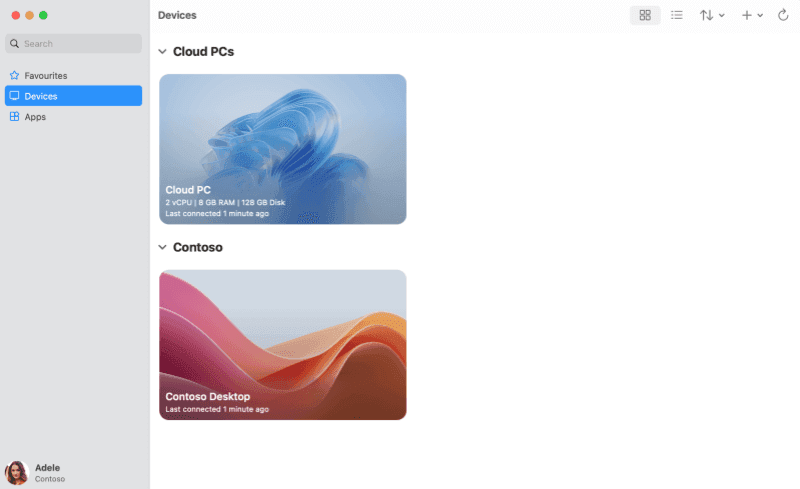
Setup Remote Resources in Windows App on Mac


Cách Dễ Dàng: Truy Cập PC Từ Xa từ Mac Sử Dụng DeskIn

Mặc dù Ứng dụng Windows cung cấp một trải nghiệm máy tính để bàn từ xa vững chắc, một số người dùng Mac có thể thấy nó hạn chế về khả năng linh hoạt, hiệu suất hoặc dễ dàng thiết lập, đặc biệt là khi truy cập vào máy tính Windows bên ngoài mạng cục bộ hoặc cần nhiều hơn chỉ kiểm soát màn hình cơ bản.

Đây là lúc DeskIn xuất hiện như một giải pháp thân thiện với người dùng. Nó là một khách hàng máy tính để bàn từ xa đa nền tảng cho phép bạn điều khiển máy tính Windows của bạn từ MacBook hoặc iMac, bất cứ lúc nào, bất cứ đâu. Dù bạn đang làm việc tại nhà, đi du lịch, hay hỗ trợ một người bạn, nó cung cấp một kết nối mượt mà và an toàn với yêu cầu thiết lập thấp hơn đáng kể so với các công cụ từ xa truyền thống. Với giao diện trực quan và bộ tính năng nâng cao, nó là phần mềm từ xa miễn phí tốt nhất để truy cập tệp hoặc phần mềm, chuyển tệp, chơi game PC từ Mac, v.v.

👀 Những Tính Năng Chính của DeskIn cho Truy Cập Từ Mac đến Windows:

  • Tương thích đa nền tảng – Kết nối Mac của bạn với bất kỳ thiết bị Windows nào.

  • Phiên làm việc từ xa độ trễ thấp – Cung cấp các tính năng tối ưu hóa cho phản hồi đầu vào và hình ảnh mượt mà.

  • Chuyển tệp từ xa – Chuyển tệp giữa Mac và PC mà không có giới hạn kích thước/loại.

  • Phát trực tuyến 4K và FPS cao – Lên tới 4K/60FPS hoặc 2K/144FPS cho hình ảnh mượt mà.

  • Phản chiếu màn hình & màn hình ảo – Phản chiếu Windows lên Mac hoặc mở rộng màn hình.

  • Truy cập không giám sát & màn hình riêng tư – Đảm bảo truy cập an toàn vào máy tính Windows của bạn mà không cần tương tác của người dùng.

Giờ thì, hãy cùng kiểm tra các bước vận hành khi sử dụng DeskIn để truy cập PC từ xa từ Mac của bạn!

Bước 1. Tải xuống và cài đặt DeskIn cho cả Mac và máy tính Windows của bạn. Tạo một tài khoản DeskIn miễn phí bằng email của bạn và hoàn tất quy trình xác minh. Đăng nhập vào cùng một tài khoản trên cả Mac và máy tính Windows mục tiêu. Nhấp vào đây để tải xuống

Bước 2. Trên Mac của bạn, khởi động DeskIn, nhập ID thiết bị và mật khẩu hiển thị trên giao diện DeskIn trên PC của bạn, và nhấp vào nút "Kết nối" để bắt đầu phiên. Bạn sẽ ngay lập tức có thể tương tác với màn hình desktop Windows của bạn trong thời gian thực.

 Remote PC Access from Mac via DeskIn App

Bước 3. Trong khi kết nối, hãy khám phá các tính năng của DeskIn như chuyển tệp, chia sẻ màn hình, hỗ trợ gamepad, và điều khiển nhiều màn hình trực tiếp từ giao diện. Bạn cũng có thể bật hoặc tắt các tùy chọn như chế độ riêng tư hoặc chuyển đổi giữa chế độ điều khiển và chỉ quan sát khi cần.

Với DeskIn, không cần thiết lập VPN, cấu hình IP, hoặc lo lắng về các phiên bản Windows, biến nó thành một công cụ dễ tiếp cận cho người dùng hàng ngày và cả các chuyên gia.


Tại Sao Chọn DeskIn Hơn Microsoft Remote Desktop?

Sau khi khám phá cả hai công cụ, điều quan trọng là so sánh cách DeskIn và Microsoft Remote Desktop (ứng dụng Windows) hoạt động ở những lĩnh vực chính. Trong khi cả hai đều cho phép bạn đăng nhập vào máy tính Windows từ Mac, chúng khác biệt rõ ràng về khả năng sử dụng, tính tương thích, và các tính năng.

Dưới đây là so sánh giữa hai công cụ để giúp bạn chọn giải pháp tốt nhất dựa trên nhu cầu của bạn:

Tính Năng

DeskIn

Microsoft Remote Desktop (Windows App)

Quá Trình Cài Đặt

Truy cập dựa trên đăng nhập đơn giản, không cần cấu hình mạng

Cần bật các cài đặt, nhập IP, và phiên bản Windows tương thích

Các Nền Tảng Hỗ Trợ

Windows, macOS, iOS, Android

macOS đến Windows chỉ

Hiển Thị & Hiệu Suất

Lên tới 4K 60FPS, nhiều màn hình, phát trực tuyến độ trễ thấp

Hiển thị tiêu chuẩn, ít tối ưu cho khả năng phản hồi theo thời gian thực

Chuyển Tệp

Chuyển tệp tích hợp, hỗ trợ chuyển tốc độ cao giữa các nền tảng

Chuyển hướng tệp hạn chế

Tính Năng Bảo Mật

Màn hình riêng tư, xác thực thiết bị, kiểm soát kết nối

Mã hóa cơ bản, phụ thuộc vào bảo vệ cấp hệ điều hành

Chơi Game & Sử Dụng Sáng Tạo

Hỗ trợ chơi game từ xa, công cụ thiết kế, và phát âm thanh

Không tối ưu cho chơi game hay quy trình làm việc sáng tạo

Giá

Miễn phí cho sử dụng thương mại (tối đa 3 thiết bị), có phiên bản cao cấp

Miễn phí, nhưng phụ thuộc vào phiên bản Windows

Nếu bạn cần một công cụ đơn giản cho các công việc văn phòng nhẹ, Microsoft Remote Desktop sẽ hoàn thành nhiệm vụ. Nhưng đối với người dùng mạnh, game thủ, hoặc đội ngũ từ xa tìm kiếm sự linh hoạt và hiệu suất, DeskIn là một giải pháp hiện đại và đầy đủ tính năng hơn. Nhấp vào đây để tải xuống


Các Câu Hỏi Thường Gặp Về Cách Truy Cập Windows từ Mac

Q1: Tôi có cần phải ở trên cùng một mạng để truy cập từ xa một PC từ Mac không?

Với Ứng dụng Windows, bạn thường cần phải ở trên cùng một mạng cục bộ hoặc sử dụng VPN để mô phỏng môi trường đó; nếu không, kết nối có thể thất bại hoặc yêu cầu chuyển tiếp cổng, điều này không thân thiện với người mới bắt đầu.

DeskIn, ngược lại, sử dụng máy chủ trung gian dựa trên đám mây để cho phép kết nối qua mạng mặc định. Điều này làm cho nó tiện lợi hơn cho người dùng làm việc từ xa trên các địa điểm hoặc mạng khác nhau.

Q2: Tôi có thể chuyển tệp từ Mac đến PC của mình trong phiên làm việc từ xa không?

Ứng dụng Windows hỗ trợ chuyển hướng tệp cơ bản, nhưng chỉ từ các thư mục đã chỉ định trước và với khả năng xử lý tệp hạn chế. Nó phù hợp cho việc truy cập tệp nhẹ, không phải chuyển giao động.

DeskIn cung cấp một giao diện chuyển tệp chuyên dụng, cho phép chuyển tệp kéo-thả theo thời gian thực với tốc độ lên đến 12MB/s, bất kể định dạng tệp. Nó cũng hỗ trợ đồng bộ clipboard và chia sẻ thư mục cho những quy trình làm việc nâng cao hơn.

Q3: Tôi có thể sử dụng những ứng dụng này để chơi game PC từ Mac không?

Ứng dụng Windows không được thiết kế cho các tác vụ hiệu năng cao như chơi game. Độ trễ đầu vào, FPS giới hạn, và thiếu hỗ trợ tay cầm game khiến nó không thực tế cho nội dung tương tác.

DeskIn, tuy nhiên, cung cấp phát trực tuyến 60FPS, đầu vào độ trễ thấp, hỗ trợ tay cầm, và tùy chỉnh ánh xạ bàn phím/chuột. Mặc dù không phải là một nền tảng phát trực tuyến game đầy đủ, nhưng nó phù hợp cho trải nghiệm chơi game từ xa nhẹ nhàng hoặc yêu cầu vừa phải.


Kết Luận

Nếu bạn đang tìm kiếm một cách nhanh chóng và miễn phí để kết nối vào một máy tính Windows từ Mac, Microsoft Remote Desktop (Windows App) là một lựa chọn vững chắc, đặc biệt là cho người dùng doanh nghiệp có quyền truy cập vào phiên bản Windows đúng và thiết lập mạng hợp lý.

Tuy nhiên, nếu bạn cần một trải nghiệm máy tính để bàn từ xa đa năng hơn, đầy đủ tính năng hơn, và thân thiện với người dùng, DeskIn là sự lựa chọn nổi bật. Nó loại bỏ các rào cản kỹ thuật, hỗ trợ các trường hợp sử dụng đa dạng từ công việc đến giải trí, và bao gồm các công cụ mạnh mẽ như chuyển tệp, phản chiếu màn hình, và phát trực tuyến 4K, ngay cả trong phiên bản miễn phí của nó.

Nhấp vào đây để tải xuống

Cách Kết Nối Từ Xa vào PC từ Mac trong 2 Cách [Hướng Dẫn Cập Nhật]

Trong môi trường làm việc từ xa hôm nay, bạn có thể thường xuyên cần sử dụng MacBook hoặc iMac của mình để kết nối từ xa vào máy tính Windows nhằm xử lý các công việc, truy cập tài nguyên, hoặc hỗ trợ người khác. Tuy nhiên, như bạn có thể đã thấy trên Reddit hoặc các diễn đàn khác, việc kết nối Mac với hệ thống Windows không phải lúc nào cũng suôn sẻ — bạn có thể gặp phải những thách thức với cấu hình mạng, tính tương thích và hiệu suất.

Nếu bạn đang tìm cách kết nối từ xa vào PC từ Mac, bài viết này sẽ chỉ cho bạn 2 giải pháp thực tiễn: sử dụng ứng dụng máy tính để bàn từ xa chính thức, Microsoft Remote Desktop (ứng dụng trên Windows), hoặc sử dụng công cụ bên thứ ba mạnh mẽ, DeskIn, để dễ dàng kích hoạt các kết nối từ xa cùng với những tính năng nâng cao. Tiếp tục đọc để tìm hiểu cách thiết lập và sử dụng những công cụ này để đạt được việc truy cập PC từ xa mượt mà từ Mac!

👀 Thêm điều thú vị để khám phá:

Phương Pháp Chính Thức: Truy Cập Windows từ Mac qua Ứng Dụng Windows

Một trong những cách tin cậy và chính thức nhất để kết nối từ xa vào một máy tính Windows từ Mac là sử dụng Microsoft Remote Desktop, hiện được gọi là Windows App trên macOS. Công cụ miễn phí này từ Microsoft cho phép truy cập từ xa an toàn từ MacBook hoặc iMac của bạn vào một máy tính Windows trên cùng một mạng thông qua VPN hoặc định tuyến internet.

Ứng dụng Windows hỗ trợ điều khiển chuột và bàn phím hoàn toàn, tối ưu hóa màn hình Retina, nhiều màn hình, chuyển tiếp âm thanh và video, và chia sẻ clipboard. Nó cũng cho phép chuyển hướng tệp cơ bản và truy cập vào môi trường doanh nghiệp như Dịch vụ Máy Tính Từ Xa, Windows 365, và Azure Virtual Desktop, biến nó thành một lựa chọn tuyệt vời cho các chuyên gia và đội ngũ hỗ trợ CNTT.

👀 Những Hạn Chế Khi Sử Dụng Ứng Dụng Windows:

  • Cần có phiên bản Windows Pro, Enterprise hoặc Education. Nó sẽ không hoạt động với Windows Home.

  • Cần cấu hình mạng (ví dụ: VPN hoặc chuyển tiếp cổng) để kết nối từ xa ngoài site.

  • Thiếu các tính năng nâng cao như chuyển tệp kéo và thả hoặc đánh thức từ xa.

  • Hiệu suất có thể biến động với các mạng không ổn định, đặc biệt nếu Mac vào chế độ ngủ.

  • Bạn có thể gặp phải sự gián đoạn phiên trong môi trường doanh nghiệp do các chính sách CNTT nghiêm ngặt.

Nếu các tính năng trên phù hợp với nhu cầu của bạn, và những hạn chế không làm bạn phiền lòng, hãy làm theo các bước dưới đây để bắt đầu. Để có hướng dẫn chi tiết từng bước, hãy xem hướng dẫn đầy đủ về sử dụng Microsoft Remote Desktop trên Mac:

  1. Tải Microsoft Remote Desktop (hiện được gọi là Windows App) từ Mac App Store và mở ứng dụng.

  2. Trên máy tính Windows của bạn, vào "Cài đặt > Hệ thống > Kết nối Từ xa" và bật truy cập từ xa.

  3. Tìm tên PC của bạn trong "Cài đặt > Hệ thống > Giới thiệu", hoặc sử dụng "ipconfig" trong Command Prompt để lấy địa chỉ IP.

  4. Tại ứng dụng Kết nối Từ xa trên Mac của bạn, nhấp vào "+ Thêm PC", và nhập tên PC hoặc IP, sau đó đăng nhập bằng thông tin xác thực Windows của bạn.

  5. Điều chỉnh cài đặt hiển thị và âm thanh theo nhu cầu, sau đó nhấp "Kết nối" để bắt đầu phiên của bạn.

Setup Remote Resources in Windows App on Mac


Cách Dễ Dàng: Truy Cập PC Từ Xa từ Mac Sử Dụng DeskIn

Mặc dù Ứng dụng Windows cung cấp một trải nghiệm máy tính để bàn từ xa vững chắc, một số người dùng Mac có thể thấy nó hạn chế về khả năng linh hoạt, hiệu suất hoặc dễ dàng thiết lập, đặc biệt là khi truy cập vào máy tính Windows bên ngoài mạng cục bộ hoặc cần nhiều hơn chỉ kiểm soát màn hình cơ bản.

Đây là lúc DeskIn xuất hiện như một giải pháp thân thiện với người dùng. Nó là một khách hàng máy tính để bàn từ xa đa nền tảng cho phép bạn điều khiển máy tính Windows của bạn từ MacBook hoặc iMac, bất cứ lúc nào, bất cứ đâu. Dù bạn đang làm việc tại nhà, đi du lịch, hay hỗ trợ một người bạn, nó cung cấp một kết nối mượt mà và an toàn với yêu cầu thiết lập thấp hơn đáng kể so với các công cụ từ xa truyền thống. Với giao diện trực quan và bộ tính năng nâng cao, nó là phần mềm từ xa miễn phí tốt nhất để truy cập tệp hoặc phần mềm, chuyển tệp, chơi game PC từ Mac, v.v.

👀 Những Tính Năng Chính của DeskIn cho Truy Cập Từ Mac đến Windows:

  • Tương thích đa nền tảng – Kết nối Mac của bạn với bất kỳ thiết bị Windows nào.

  • Phiên làm việc từ xa độ trễ thấp – Cung cấp các tính năng tối ưu hóa cho phản hồi đầu vào và hình ảnh mượt mà.

  • Chuyển tệp từ xa – Chuyển tệp giữa Mac và PC mà không có giới hạn kích thước/loại.

  • Phát trực tuyến 4K và FPS cao – Lên tới 4K/60FPS hoặc 2K/144FPS cho hình ảnh mượt mà.

  • Phản chiếu màn hình & màn hình ảo – Phản chiếu Windows lên Mac hoặc mở rộng màn hình.

  • Truy cập không giám sát & màn hình riêng tư – Đảm bảo truy cập an toàn vào máy tính Windows của bạn mà không cần tương tác của người dùng.

Giờ thì, hãy cùng kiểm tra các bước vận hành khi sử dụng DeskIn để truy cập PC từ xa từ Mac của bạn!

Bước 1. Tải xuống và cài đặt DeskIn cho cả Mac và máy tính Windows của bạn. Tạo một tài khoản DeskIn miễn phí bằng email của bạn và hoàn tất quy trình xác minh. Đăng nhập vào cùng một tài khoản trên cả Mac và máy tính Windows mục tiêu. Nhấp vào đây để tải xuống

Bước 2. Trên Mac của bạn, khởi động DeskIn, nhập ID thiết bị và mật khẩu hiển thị trên giao diện DeskIn trên PC của bạn, và nhấp vào nút "Kết nối" để bắt đầu phiên. Bạn sẽ ngay lập tức có thể tương tác với màn hình desktop Windows của bạn trong thời gian thực.

 Remote PC Access from Mac via DeskIn App

Bước 3. Trong khi kết nối, hãy khám phá các tính năng của DeskIn như chuyển tệp, chia sẻ màn hình, hỗ trợ gamepad, và điều khiển nhiều màn hình trực tiếp từ giao diện. Bạn cũng có thể bật hoặc tắt các tùy chọn như chế độ riêng tư hoặc chuyển đổi giữa chế độ điều khiển và chỉ quan sát khi cần.

Với DeskIn, không cần thiết lập VPN, cấu hình IP, hoặc lo lắng về các phiên bản Windows, biến nó thành một công cụ dễ tiếp cận cho người dùng hàng ngày và cả các chuyên gia.


Tại Sao Chọn DeskIn Hơn Microsoft Remote Desktop?

Sau khi khám phá cả hai công cụ, điều quan trọng là so sánh cách DeskIn và Microsoft Remote Desktop (ứng dụng Windows) hoạt động ở những lĩnh vực chính. Trong khi cả hai đều cho phép bạn đăng nhập vào máy tính Windows từ Mac, chúng khác biệt rõ ràng về khả năng sử dụng, tính tương thích, và các tính năng.

Dưới đây là so sánh giữa hai công cụ để giúp bạn chọn giải pháp tốt nhất dựa trên nhu cầu của bạn:

Tính Năng

DeskIn

Microsoft Remote Desktop (Windows App)

Quá Trình Cài Đặt

Truy cập dựa trên đăng nhập đơn giản, không cần cấu hình mạng

Cần bật các cài đặt, nhập IP, và phiên bản Windows tương thích

Các Nền Tảng Hỗ Trợ

Windows, macOS, iOS, Android

macOS đến Windows chỉ

Hiển Thị & Hiệu Suất

Lên tới 4K 60FPS, nhiều màn hình, phát trực tuyến độ trễ thấp

Hiển thị tiêu chuẩn, ít tối ưu cho khả năng phản hồi theo thời gian thực

Chuyển Tệp

Chuyển tệp tích hợp, hỗ trợ chuyển tốc độ cao giữa các nền tảng

Chuyển hướng tệp hạn chế

Tính Năng Bảo Mật

Màn hình riêng tư, xác thực thiết bị, kiểm soát kết nối

Mã hóa cơ bản, phụ thuộc vào bảo vệ cấp hệ điều hành

Chơi Game & Sử Dụng Sáng Tạo

Hỗ trợ chơi game từ xa, công cụ thiết kế, và phát âm thanh

Không tối ưu cho chơi game hay quy trình làm việc sáng tạo

Giá

Miễn phí cho sử dụng thương mại (tối đa 3 thiết bị), có phiên bản cao cấp

Miễn phí, nhưng phụ thuộc vào phiên bản Windows

Nếu bạn cần một công cụ đơn giản cho các công việc văn phòng nhẹ, Microsoft Remote Desktop sẽ hoàn thành nhiệm vụ. Nhưng đối với người dùng mạnh, game thủ, hoặc đội ngũ từ xa tìm kiếm sự linh hoạt và hiệu suất, DeskIn là một giải pháp hiện đại và đầy đủ tính năng hơn. Nhấp vào đây để tải xuống


Các Câu Hỏi Thường Gặp Về Cách Truy Cập Windows từ Mac

Q1: Tôi có cần phải ở trên cùng một mạng để truy cập từ xa một PC từ Mac không?

Với Ứng dụng Windows, bạn thường cần phải ở trên cùng một mạng cục bộ hoặc sử dụng VPN để mô phỏng môi trường đó; nếu không, kết nối có thể thất bại hoặc yêu cầu chuyển tiếp cổng, điều này không thân thiện với người mới bắt đầu.

DeskIn, ngược lại, sử dụng máy chủ trung gian dựa trên đám mây để cho phép kết nối qua mạng mặc định. Điều này làm cho nó tiện lợi hơn cho người dùng làm việc từ xa trên các địa điểm hoặc mạng khác nhau.

Q2: Tôi có thể chuyển tệp từ Mac đến PC của mình trong phiên làm việc từ xa không?

Ứng dụng Windows hỗ trợ chuyển hướng tệp cơ bản, nhưng chỉ từ các thư mục đã chỉ định trước và với khả năng xử lý tệp hạn chế. Nó phù hợp cho việc truy cập tệp nhẹ, không phải chuyển giao động.

DeskIn cung cấp một giao diện chuyển tệp chuyên dụng, cho phép chuyển tệp kéo-thả theo thời gian thực với tốc độ lên đến 12MB/s, bất kể định dạng tệp. Nó cũng hỗ trợ đồng bộ clipboard và chia sẻ thư mục cho những quy trình làm việc nâng cao hơn.

Q3: Tôi có thể sử dụng những ứng dụng này để chơi game PC từ Mac không?

Ứng dụng Windows không được thiết kế cho các tác vụ hiệu năng cao như chơi game. Độ trễ đầu vào, FPS giới hạn, và thiếu hỗ trợ tay cầm game khiến nó không thực tế cho nội dung tương tác.

DeskIn, tuy nhiên, cung cấp phát trực tuyến 60FPS, đầu vào độ trễ thấp, hỗ trợ tay cầm, và tùy chỉnh ánh xạ bàn phím/chuột. Mặc dù không phải là một nền tảng phát trực tuyến game đầy đủ, nhưng nó phù hợp cho trải nghiệm chơi game từ xa nhẹ nhàng hoặc yêu cầu vừa phải.


Kết Luận

Nếu bạn đang tìm kiếm một cách nhanh chóng và miễn phí để kết nối vào một máy tính Windows từ Mac, Microsoft Remote Desktop (Windows App) là một lựa chọn vững chắc, đặc biệt là cho người dùng doanh nghiệp có quyền truy cập vào phiên bản Windows đúng và thiết lập mạng hợp lý.

Tuy nhiên, nếu bạn cần một trải nghiệm máy tính để bàn từ xa đa năng hơn, đầy đủ tính năng hơn, và thân thiện với người dùng, DeskIn là sự lựa chọn nổi bật. Nó loại bỏ các rào cản kỹ thuật, hỗ trợ các trường hợp sử dụng đa dạng từ công việc đến giải trí, và bao gồm các công cụ mạnh mẽ như chuyển tệp, phản chiếu màn hình, và phát trực tuyến 4K, ngay cả trong phiên bản miễn phí của nó.

Nhấp vào đây để tải xuống

Play x Work
All at Once

LIMITED SALE 9.9 - 9.16

LIMITED SALE 9.9 - 9.16

DeskIn Remote Game

only $14.32 USD 🎉 Limited on July 16-31

Add promo code: deskinsummer1

DeskIn Performance

Over 70% OFF

Yearly Plan Only $12.49/Month

Use Promo Code: DESKIN50

DeskIn Performance

Over 70% OFF

Yearly Plan Only $12.49/Month

Use Promo Code: DESKIN50

Kết nối từ xa vào PC từ Mac

Table of Contents

LIMITED SALE 9.9 - 9.16

DeskIn Performance

Over 70% OFF

Yearly Plan Only $12.49/Month

Use Promo Code: DESKIN50

What’s next?

Developers work smarter with remote desktop

How Remote Desktop Can Help App and Game Developers Work Smarter

In today’s fast-growing digital era, companies are constantly building applications to simplify workflows and boost productivity. From software developers to game studios, the demand for remote access solutions is skyrocketing. Teams need tools that allow them to work seamlessly across different locations while keeping efficiency and collaboration high.

DeskIn: High-Performance Remote Access for Every Need

One of the best solutions for remote access is DeskIn—a remote desktop tool designed to deliver top-tier performance for professionals, developers, and even gamers. Unlike basic remote desktop tools, DeskIn is built for multi-purpose use. Whether you’re debugging an app, managing a design project, or testing games, DeskIn ensures smooth remote access without lag or downtime. With powerful servers, DeskIn provides up to 144fps in 2K true color, giving you a real-time experience that feels just like working on your main machine.

In this article, we’ll explore how DeskIn can simplify development, enhance collaboration, and cut costs for teams who rely heavily on remote access.

Why DeskIn Remote Access Stands Out for Developers & Game Studios

In game and app development, every detail matters. DeskIn equips teams with the essential tools to achieve smooth and secure remote access:

  1. 2K True Color Mirroring & Extending
    Accurate visuals are critical for design and testing. With 2K mirroring and extending, developers can enjoy crystal-clear quality through remote access, making it easy to review graphics, UI, and animations as if they were working directly on a high-end workstation.

  2. Root-Free Android Control
    DeskIn offers remote access to Android devices without requiring root. This makes it perfect for mobile app developers who need to test applications safely and quickly, avoiding complicated setup or risks.

  3. Ultra-Low Latency & Fast File Transfer
    With less than 40ms latency, DeskIn ensures your remote access feels instant—ideal for real-time debugging or game testing. On top of that, DeskIn enables file transfer up to 12 MB/s, so moving large project files across devices is fast and effortless.

  4. Scale Up to 100 Devices
    Teams often need to manage multiple workstations. DeskIn supports remote access for up to 100 devices under one ecosystem, making it easy to scale operations for larger development teams or studios.

  5. Enterprise-Grade Security
    Security is non-negotiable in remote access. DeskIn protects all connections with 256-bit encryption, the same standard used in financial systems, ensuring sensitive projects and client data remain safe at all times.

  6. Cost Efficiency & Flexibility
    With DeskIn, teams no longer need high-end hardware for every member. Even from a lightweight laptop or tablet, users can access powerful workstations remotely. This flexibility reduces costs without sacrificing performance, making remote access both effective and economical.

Conclusion

DeskIn is more than just a remote desktop—it’s a complete remote access solution designed to meet modern productivity needs. From ultra-low latency and secure connections to Android control and large-scale device support, DeskIn empowers developers, IT teams, and creative professionals to work anywhere, anytime.

For application developers, game studios, and professionals looking for reliable remote access, DeskIn offers the perfect balance of speed, security, and cost efficiency.

Get start your DeskIn remote access

Developers work smarter with remote desktop

How Remote Desktop Can Help App and Game Developers Work Smarter

In today’s fast-growing digital era, companies are constantly building applications to simplify workflows and boost productivity. From software developers to game studios, the demand for remote access solutions is skyrocketing. Teams need tools that allow them to work seamlessly across different locations while keeping efficiency and collaboration high.

DeskIn: High-Performance Remote Access for Every Need

One of the best solutions for remote access is DeskIn—a remote desktop tool designed to deliver top-tier performance for professionals, developers, and even gamers. Unlike basic remote desktop tools, DeskIn is built for multi-purpose use. Whether you’re debugging an app, managing a design project, or testing games, DeskIn ensures smooth remote access without lag or downtime. With powerful servers, DeskIn provides up to 144fps in 2K true color, giving you a real-time experience that feels just like working on your main machine.

In this article, we’ll explore how DeskIn can simplify development, enhance collaboration, and cut costs for teams who rely heavily on remote access.

Why DeskIn Remote Access Stands Out for Developers & Game Studios

In game and app development, every detail matters. DeskIn equips teams with the essential tools to achieve smooth and secure remote access:

  1. 2K True Color Mirroring & Extending
    Accurate visuals are critical for design and testing. With 2K mirroring and extending, developers can enjoy crystal-clear quality through remote access, making it easy to review graphics, UI, and animations as if they were working directly on a high-end workstation.

  2. Root-Free Android Control
    DeskIn offers remote access to Android devices without requiring root. This makes it perfect for mobile app developers who need to test applications safely and quickly, avoiding complicated setup or risks.

  3. Ultra-Low Latency & Fast File Transfer
    With less than 40ms latency, DeskIn ensures your remote access feels instant—ideal for real-time debugging or game testing. On top of that, DeskIn enables file transfer up to 12 MB/s, so moving large project files across devices is fast and effortless.

  4. Scale Up to 100 Devices
    Teams often need to manage multiple workstations. DeskIn supports remote access for up to 100 devices under one ecosystem, making it easy to scale operations for larger development teams or studios.

  5. Enterprise-Grade Security
    Security is non-negotiable in remote access. DeskIn protects all connections with 256-bit encryption, the same standard used in financial systems, ensuring sensitive projects and client data remain safe at all times.

  6. Cost Efficiency & Flexibility
    With DeskIn, teams no longer need high-end hardware for every member. Even from a lightweight laptop or tablet, users can access powerful workstations remotely. This flexibility reduces costs without sacrificing performance, making remote access both effective and economical.

Conclusion

DeskIn is more than just a remote desktop—it’s a complete remote access solution designed to meet modern productivity needs. From ultra-low latency and secure connections to Android control and large-scale device support, DeskIn empowers developers, IT teams, and creative professionals to work anywhere, anytime.

For application developers, game studios, and professionals looking for reliable remote access, DeskIn offers the perfect balance of speed, security, and cost efficiency.

Get start your DeskIn remote access

dental using remote desktop

Transforming Dental CAD Workflows: How Village Denture Studio Leveraged DeskIn for Seamless Remote Access

In today’s fast-paced digital landscape, the ability to work seamlessly from anywhere has become essential—especially for industries that rely on high-performance design software. For dental labs, where precision and efficiency are critical, finding the right remote access solution can make all the difference.

Background

Village Denture Studio is a specialized dental lab comprising four Clinical Dental Technicians and a dedicated technician specializing in dental CAD design. With five professionals sharing access to CAD workstations across multiple clinics at varying times, the team faced challenges in accessing their design workstations remotely. The need for seamless and efficient remote access became increasingly apparent as the team sought to enhance their workflow and productivity.

Challenges

Initially, the team utilized Splashtop Pro for remote access. However, they encountered issues such as lag and a lack of smoothness, which hindered their ability to perform intricate CAD design tasks remotely.

Implementation

DeskIn was installed on all CAD PCs, enabling staff to remotely access their workstations from home computers. This setup proved particularly beneficial for team members who travel frequently, allowing them to access CAD PCs from various devices, including MacBooks.

Results

The integration of DeskIn allowed the team to utilize their CAD PCs more efficiently without location constraints. DeskIn's ultra-low latency and seamless integration allowed the technicians to access CAD workstations remotely without compromising on performance. This advancement meant that design work could be done from various locations, whether at home, during travel, or from different clinics, without the need to be physically present at the lab.The seamless experience made it feel as if they were working directly on the actual computer, despite being remote.

Transforming the Work Environment

The adoption of DeskIn has significantly transformed the studio's workflow:

  • Increased Accessibility: Technicians can now access CAD systems from any location, facilitating flexible work arrangements and reducing the need for commuting.

  • Cost Efficiency: The need to purchase additional CAD workstations for each technician has been eliminated, leading to cost savings for the studio.

  • Improved Work-Life Balance: Technicians can manage their work schedules more effectively, balancing professional responsibilities with personal commitments.

Community Impact

Recently, during an industry course, a team member had the opportunity to demonstrate DeskIn to fellow dental professionals while discussing remote work solutions. Colleagues were genuinely surprised and impressed by the performance, particularly considering that the CAD software is traditionally PC-only. Many expected the experience to be laggy or difficult on a MacBook, but DeskIn’s responsiveness exceeded expectations.

They commented on how smooth and intuitive the remote workflow felt, remarking that it was almost indistinguishable from working directly on the CAD PC itself. Several attendees noted that this could radically change how dental labs manage CAD operations, enabling flexible work arrangements and remote collaboration in ways they had not considered before. The demonstration sparked conversations about adopting similar solutions in their own practices, highlighting DeskIn’s potential industry-wide impact.

Future Outlook

Looking ahead, DeskIn supports the studio's growth plans. The team no longer anticipates the need to purchase separate CAD PCs for each staff member. Instead, they can efficiently use DeskIn to remotely access existing PCs, optimizing resource utilization and maintaining flexibility.

This success story highlights how DeskIn transformed Village Denture Studio's CAD design workflow, enabling remote access, enhancing efficiency, and supporting future growth.


Read More Case Study: 

dental using remote desktop

Transforming Dental CAD Workflows: How Village Denture Studio Leveraged DeskIn for Seamless Remote Access

In today’s fast-paced digital landscape, the ability to work seamlessly from anywhere has become essential—especially for industries that rely on high-performance design software. For dental labs, where precision and efficiency are critical, finding the right remote access solution can make all the difference.

Background

Village Denture Studio is a specialized dental lab comprising four Clinical Dental Technicians and a dedicated technician specializing in dental CAD design. With five professionals sharing access to CAD workstations across multiple clinics at varying times, the team faced challenges in accessing their design workstations remotely. The need for seamless and efficient remote access became increasingly apparent as the team sought to enhance their workflow and productivity.

Challenges

Initially, the team utilized Splashtop Pro for remote access. However, they encountered issues such as lag and a lack of smoothness, which hindered their ability to perform intricate CAD design tasks remotely.

Implementation

DeskIn was installed on all CAD PCs, enabling staff to remotely access their workstations from home computers. This setup proved particularly beneficial for team members who travel frequently, allowing them to access CAD PCs from various devices, including MacBooks.

Results

The integration of DeskIn allowed the team to utilize their CAD PCs more efficiently without location constraints. DeskIn's ultra-low latency and seamless integration allowed the technicians to access CAD workstations remotely without compromising on performance. This advancement meant that design work could be done from various locations, whether at home, during travel, or from different clinics, without the need to be physically present at the lab.The seamless experience made it feel as if they were working directly on the actual computer, despite being remote.

Transforming the Work Environment

The adoption of DeskIn has significantly transformed the studio's workflow:

  • Increased Accessibility: Technicians can now access CAD systems from any location, facilitating flexible work arrangements and reducing the need for commuting.

  • Cost Efficiency: The need to purchase additional CAD workstations for each technician has been eliminated, leading to cost savings for the studio.

  • Improved Work-Life Balance: Technicians can manage their work schedules more effectively, balancing professional responsibilities with personal commitments.

Community Impact

Recently, during an industry course, a team member had the opportunity to demonstrate DeskIn to fellow dental professionals while discussing remote work solutions. Colleagues were genuinely surprised and impressed by the performance, particularly considering that the CAD software is traditionally PC-only. Many expected the experience to be laggy or difficult on a MacBook, but DeskIn’s responsiveness exceeded expectations.

They commented on how smooth and intuitive the remote workflow felt, remarking that it was almost indistinguishable from working directly on the CAD PC itself. Several attendees noted that this could radically change how dental labs manage CAD operations, enabling flexible work arrangements and remote collaboration in ways they had not considered before. The demonstration sparked conversations about adopting similar solutions in their own practices, highlighting DeskIn’s potential industry-wide impact.

Future Outlook

Looking ahead, DeskIn supports the studio's growth plans. The team no longer anticipates the need to purchase separate CAD PCs for each staff member. Instead, they can efficiently use DeskIn to remotely access existing PCs, optimizing resource utilization and maintaining flexibility.

This success story highlights how DeskIn transformed Village Denture Studio's CAD design workflow, enabling remote access, enhancing efficiency, and supporting future growth.


Read More Case Study: 

play gtav on mobile device

How to Play GTA V on Mobile: The Ultimate Guide for Gaming on the Go

Can you play GTA V on mobile? It's a question that haunts every mobile gamer who's ever wanted to cruise through Los Santos on their phone.

If you're tired of waiting for Rockstar to officially bring GTA V to mobile, or you've tried sketchy workarounds that left your device vulnerable, here's some good news: there's a legit way to play GTA V on your phone or tablet. And it's smoother than Franklin's driving skills.

Let me show you why playing GTA V on mobile seemed impossible — and how a smart remote gaming solution called Deskin turns your mobile device into a portable Los Santos gateway.

interface gta v on mobile device

The Reality Check: Why GTA V Mobile Doesn't Exist (Yet)

Here's the truth bomb: Rockstar Games has never released an official GTA V mobile port. Despite the massive success of GTA San Andreas and Vice City on mobile platforms, GTA V remains locked to PC, PlayStation, and Xbox.

Why? The game is massive. We're talking about a 100+ GB install with graphics that push even high-end PCs to their limits. Mobile hardware, while impressive, isn't quite ready for that level of chaos.

The numbers tell the story:

  • GTA V requires 8GB RAM minimum on PC

  • Most mobile devices have 4-8GB RAM total

  • The game's graphics engine demands dedicated GPU power that mobile chips can't match

But here's where it gets interesting. While you can't install GTA V directly on mobile, you can absolutely play it on your phone or tablet using remote gaming technology.

Method 1: Cloud Gaming Services - Rent Gaming Power

Cloud gaming flips the script entirely. Instead of using your own PC, you rent gaming power from services like GeForce NOW, Xbox Cloud Gaming, or PlayStation Now.

The appeal: No gaming PC required. Just sign up, log in through your browser or app, and start playing GTA V on virtually any device with internet.

The reality:

  • Latency issues: Even with great internet, there's noticeable input delay

  • Cost factor: Most services charge $10-20 monthly after free trials

  • Queue times: Popular games often have wait times during peak hours

  • Data usage: Streaming HD games can burn through mobile data fast

Performance stats from real users:

  • Average latency: 80-150ms (compared to 20-40ms for local remote gaming)

  • Monthly data usage: 10-15GB for casual play

  • Quality drops during peak hours (6-10 PM)

This works for casual gaming sessions, but competitive players will feel every millisecond of delay.

Method 2: Remote Gaming - Stream GTA V from Your PC

This is the golden ticket for mobile GTA V gaming. Instead of trying to cram the entire game onto your phone, you run it on a gaming PC and stream the experience to your mobile device.

How it works: Your gaming PC does all the heavy lifting — rendering graphics, processing physics, handling AI. Your mobile device becomes a smart controller and display, receiving the video stream and sending your inputs back.

What you need:

  • A gaming PC with GTA V installed

  • Stable Wi-Fi connection (5GHz recommended)

  • A remote gaming app like Deskin or Parsec

Performance reality check: With the right setup, you'll get near-native performance. I'm talking about 60fps gameplay with minimal input lag. The key is having solid internet and the right streaming tool.

The biggest advantage? You're playing the full, unmodified version of GTA V. All DLCs, all updates, all the chaos you expect from Los Santos.

Why Deskin beats the competition:

Ultra-low latency streaming: We're talking sub-40ms input lag, which is close to playing locally. That means responsive driving, accurate shooting, and smooth mission gameplay.

4K60FPS or 2K144FPS support: Your mobile device becomes a premium gaming display. Whether you're using an iPhone, iPad, or Android tablet, you get crisp, smooth visuals that do justice to GTA V's graphics.

True controller support: Connect your favorite Bluetooth controller to your mobile device and play GTA V exactly like you would on console. No awkward touch controls, no compromised gameplay.

Works anywhere: As long as you have internet, you can access your gaming PC. Beach vacation? Business trip? Lunch break? Los Santos is always a tap away.

Cross-platform magic: iPhone to Windows PC, Android to Mac, tablet to gaming rig — Deskin connects everything seamlessly.

Want to level up your entire remote gaming setup? Check out how to optimize your gaming keyboard and hotkeys for remote play to get console-level control on mobile.

Getting Started: Your Step-by-Step Setup Guide

Ready to install GTA V on mobile (sort of)? Here's how to set up remote access gaming:

What you'll need:

  • Gaming PC with GTA V installed

  • Mobile device (iOS 12+ or Android 8+)

  • Stable Wi-Fi connection on both devices

  • Deskin app (free download)

Setup process:

setting deskin
  1. Download Deskin on both your PC and mobile device

  2. Sign up or log in using the same account on both devices.

  3. On your phone, open DeskIn, go to “My Devices”, and select your PC.

  4. Enter the password to verify or approve the request manually on your PC.

  5. Tap “Control” to initiate the remote connection.

  6. Adjust resolution and frame rate in the settings for optimal performance.

  7. Launch GTA V on your phone and start playing directly on your PC screen.

  8. Connect a game controller to your mobile device for smoother and more responsive gameplay.

Pro tip: Start with 1080p60fps settings and adjust up or down based on your connection stability. You can always fine-tune later.

The whole setup takes about 10 minutes, and once it's done, launching GTA V on mobile becomes as simple as opening an app.

Performance Tips: Getting the Best Mobile GTA V Experience

Getting smooth gameplay requires the right settings. Here's what actually works:

Network optimization:

  • Use 5GHz Wi-Fi when possible

  • Keep both devices close to your router

  • Close bandwidth-heavy apps on your network

  • Consider ethernet connection for your gaming PC

Quality settings that matter:

  • Start with 1080p60fps for stable performance

  • Bump to 2K if your connection can handle it

  • Prioritize frame rate over resolution for competitive play

  • Enable hardware acceleration on both devices

Controller setup: Most Bluetooth controllers work great with Deskin. Xbox and PlayStation controllers are plug-and-play. The key is pairing the controller to your mobile device, not your PC.

Real user stats:

  • Average setup time: 8-12 minutes

  • Typical latency on good Wi-Fi: 25-35ms

  • Data usage per hour: 1-2GB on high settings

  • Battery life impact: 20-30% more drain than normal mobile gaming

Looking to maximize your setup even further? Learn how to set up dual monitors for gaming to keep Discord, maps, or streaming tools open while you play.

Is This Legal and Safe?

The big question everyone asks: is this allowed?

Short answer: Yes, completely.

You're not pirating, emulating, or modifying anything. You own GTA V on PC, you're running it on your own hardware, and you're simply viewing it on a different screen. It's like using a wireless monitor — totally legitimate.

Why it's safe:

  • No game file modifications

  • No bypass of copy protection

  • No violation of Rockstar's terms of service

  • Uses standard remote access protocols

Privacy protection: Deskin uses encrypted connections between your devices. Your gaming sessions stay private, and no data passes through third-party servers during gameplay.

Get started with Deskin today and turn any screen into your personal gateway to Los Santos. Your mobile GTA V adventure starts now.

Download Here

play gtav on mobile device

How to Play GTA V on Mobile: The Ultimate Guide for Gaming on the Go

Can you play GTA V on mobile? It's a question that haunts every mobile gamer who's ever wanted to cruise through Los Santos on their phone.

If you're tired of waiting for Rockstar to officially bring GTA V to mobile, or you've tried sketchy workarounds that left your device vulnerable, here's some good news: there's a legit way to play GTA V on your phone or tablet. And it's smoother than Franklin's driving skills.

Let me show you why playing GTA V on mobile seemed impossible — and how a smart remote gaming solution called Deskin turns your mobile device into a portable Los Santos gateway.

interface gta v on mobile device

The Reality Check: Why GTA V Mobile Doesn't Exist (Yet)

Here's the truth bomb: Rockstar Games has never released an official GTA V mobile port. Despite the massive success of GTA San Andreas and Vice City on mobile platforms, GTA V remains locked to PC, PlayStation, and Xbox.

Why? The game is massive. We're talking about a 100+ GB install with graphics that push even high-end PCs to their limits. Mobile hardware, while impressive, isn't quite ready for that level of chaos.

The numbers tell the story:

  • GTA V requires 8GB RAM minimum on PC

  • Most mobile devices have 4-8GB RAM total

  • The game's graphics engine demands dedicated GPU power that mobile chips can't match

But here's where it gets interesting. While you can't install GTA V directly on mobile, you can absolutely play it on your phone or tablet using remote gaming technology.

Method 1: Cloud Gaming Services - Rent Gaming Power

Cloud gaming flips the script entirely. Instead of using your own PC, you rent gaming power from services like GeForce NOW, Xbox Cloud Gaming, or PlayStation Now.

The appeal: No gaming PC required. Just sign up, log in through your browser or app, and start playing GTA V on virtually any device with internet.

The reality:

  • Latency issues: Even with great internet, there's noticeable input delay

  • Cost factor: Most services charge $10-20 monthly after free trials

  • Queue times: Popular games often have wait times during peak hours

  • Data usage: Streaming HD games can burn through mobile data fast

Performance stats from real users:

  • Average latency: 80-150ms (compared to 20-40ms for local remote gaming)

  • Monthly data usage: 10-15GB for casual play

  • Quality drops during peak hours (6-10 PM)

This works for casual gaming sessions, but competitive players will feel every millisecond of delay.

Method 2: Remote Gaming - Stream GTA V from Your PC

This is the golden ticket for mobile GTA V gaming. Instead of trying to cram the entire game onto your phone, you run it on a gaming PC and stream the experience to your mobile device.

How it works: Your gaming PC does all the heavy lifting — rendering graphics, processing physics, handling AI. Your mobile device becomes a smart controller and display, receiving the video stream and sending your inputs back.

What you need:

  • A gaming PC with GTA V installed

  • Stable Wi-Fi connection (5GHz recommended)

  • A remote gaming app like Deskin or Parsec

Performance reality check: With the right setup, you'll get near-native performance. I'm talking about 60fps gameplay with minimal input lag. The key is having solid internet and the right streaming tool.

The biggest advantage? You're playing the full, unmodified version of GTA V. All DLCs, all updates, all the chaos you expect from Los Santos.

Why Deskin beats the competition:

Ultra-low latency streaming: We're talking sub-40ms input lag, which is close to playing locally. That means responsive driving, accurate shooting, and smooth mission gameplay.

4K60FPS or 2K144FPS support: Your mobile device becomes a premium gaming display. Whether you're using an iPhone, iPad, or Android tablet, you get crisp, smooth visuals that do justice to GTA V's graphics.

True controller support: Connect your favorite Bluetooth controller to your mobile device and play GTA V exactly like you would on console. No awkward touch controls, no compromised gameplay.

Works anywhere: As long as you have internet, you can access your gaming PC. Beach vacation? Business trip? Lunch break? Los Santos is always a tap away.

Cross-platform magic: iPhone to Windows PC, Android to Mac, tablet to gaming rig — Deskin connects everything seamlessly.

Want to level up your entire remote gaming setup? Check out how to optimize your gaming keyboard and hotkeys for remote play to get console-level control on mobile.

Getting Started: Your Step-by-Step Setup Guide

Ready to install GTA V on mobile (sort of)? Here's how to set up remote access gaming:

What you'll need:

  • Gaming PC with GTA V installed

  • Mobile device (iOS 12+ or Android 8+)

  • Stable Wi-Fi connection on both devices

  • Deskin app (free download)

Setup process:

setting deskin
  1. Download Deskin on both your PC and mobile device

  2. Sign up or log in using the same account on both devices.

  3. On your phone, open DeskIn, go to “My Devices”, and select your PC.

  4. Enter the password to verify or approve the request manually on your PC.

  5. Tap “Control” to initiate the remote connection.

  6. Adjust resolution and frame rate in the settings for optimal performance.

  7. Launch GTA V on your phone and start playing directly on your PC screen.

  8. Connect a game controller to your mobile device for smoother and more responsive gameplay.

Pro tip: Start with 1080p60fps settings and adjust up or down based on your connection stability. You can always fine-tune later.

The whole setup takes about 10 minutes, and once it's done, launching GTA V on mobile becomes as simple as opening an app.

Performance Tips: Getting the Best Mobile GTA V Experience

Getting smooth gameplay requires the right settings. Here's what actually works:

Network optimization:

  • Use 5GHz Wi-Fi when possible

  • Keep both devices close to your router

  • Close bandwidth-heavy apps on your network

  • Consider ethernet connection for your gaming PC

Quality settings that matter:

  • Start with 1080p60fps for stable performance

  • Bump to 2K if your connection can handle it

  • Prioritize frame rate over resolution for competitive play

  • Enable hardware acceleration on both devices

Controller setup: Most Bluetooth controllers work great with Deskin. Xbox and PlayStation controllers are plug-and-play. The key is pairing the controller to your mobile device, not your PC.

Real user stats:

  • Average setup time: 8-12 minutes

  • Typical latency on good Wi-Fi: 25-35ms

  • Data usage per hour: 1-2GB on high settings

  • Battery life impact: 20-30% more drain than normal mobile gaming

Looking to maximize your setup even further? Learn how to set up dual monitors for gaming to keep Discord, maps, or streaming tools open while you play.

Is This Legal and Safe?

The big question everyone asks: is this allowed?

Short answer: Yes, completely.

You're not pirating, emulating, or modifying anything. You own GTA V on PC, you're running it on your own hardware, and you're simply viewing it on a different screen. It's like using a wireless monitor — totally legitimate.

Why it's safe:

  • No game file modifications

  • No bypass of copy protection

  • No violation of Rockstar's terms of service

  • Uses standard remote access protocols

Privacy protection: Deskin uses encrypted connections between your devices. Your gaming sessions stay private, and no data passes through third-party servers during gameplay.

Get started with Deskin today and turn any screen into your personal gateway to Los Santos. Your mobile GTA V adventure starts now.

Download Here

Developers work smarter with remote desktop

How Remote Desktop Can Help App and Game Developers Work Smarter

In today’s fast-growing digital era, companies are constantly building applications to simplify workflows and boost productivity. From software developers to game studios, the demand for remote access solutions is skyrocketing. Teams need tools that allow them to work seamlessly across different locations while keeping efficiency and collaboration high.

DeskIn: High-Performance Remote Access for Every Need

One of the best solutions for remote access is DeskIn—a remote desktop tool designed to deliver top-tier performance for professionals, developers, and even gamers. Unlike basic remote desktop tools, DeskIn is built for multi-purpose use. Whether you’re debugging an app, managing a design project, or testing games, DeskIn ensures smooth remote access without lag or downtime. With powerful servers, DeskIn provides up to 144fps in 2K true color, giving you a real-time experience that feels just like working on your main machine.

In this article, we’ll explore how DeskIn can simplify development, enhance collaboration, and cut costs for teams who rely heavily on remote access.

Why DeskIn Remote Access Stands Out for Developers & Game Studios

In game and app development, every detail matters. DeskIn equips teams with the essential tools to achieve smooth and secure remote access:

  1. 2K True Color Mirroring & Extending
    Accurate visuals are critical for design and testing. With 2K mirroring and extending, developers can enjoy crystal-clear quality through remote access, making it easy to review graphics, UI, and animations as if they were working directly on a high-end workstation.

  2. Root-Free Android Control
    DeskIn offers remote access to Android devices without requiring root. This makes it perfect for mobile app developers who need to test applications safely and quickly, avoiding complicated setup or risks.

  3. Ultra-Low Latency & Fast File Transfer
    With less than 40ms latency, DeskIn ensures your remote access feels instant—ideal for real-time debugging or game testing. On top of that, DeskIn enables file transfer up to 12 MB/s, so moving large project files across devices is fast and effortless.

  4. Scale Up to 100 Devices
    Teams often need to manage multiple workstations. DeskIn supports remote access for up to 100 devices under one ecosystem, making it easy to scale operations for larger development teams or studios.

  5. Enterprise-Grade Security
    Security is non-negotiable in remote access. DeskIn protects all connections with 256-bit encryption, the same standard used in financial systems, ensuring sensitive projects and client data remain safe at all times.

  6. Cost Efficiency & Flexibility
    With DeskIn, teams no longer need high-end hardware for every member. Even from a lightweight laptop or tablet, users can access powerful workstations remotely. This flexibility reduces costs without sacrificing performance, making remote access both effective and economical.

Conclusion

DeskIn is more than just a remote desktop—it’s a complete remote access solution designed to meet modern productivity needs. From ultra-low latency and secure connections to Android control and large-scale device support, DeskIn empowers developers, IT teams, and creative professionals to work anywhere, anytime.

For application developers, game studios, and professionals looking for reliable remote access, DeskIn offers the perfect balance of speed, security, and cost efficiency.

Get start your DeskIn remote access

dental using remote desktop

Transforming Dental CAD Workflows: How Village Denture Studio Leveraged DeskIn for Seamless Remote Access

In today’s fast-paced digital landscape, the ability to work seamlessly from anywhere has become essential—especially for industries that rely on high-performance design software. For dental labs, where precision and efficiency are critical, finding the right remote access solution can make all the difference.

Background

Village Denture Studio is a specialized dental lab comprising four Clinical Dental Technicians and a dedicated technician specializing in dental CAD design. With five professionals sharing access to CAD workstations across multiple clinics at varying times, the team faced challenges in accessing their design workstations remotely. The need for seamless and efficient remote access became increasingly apparent as the team sought to enhance their workflow and productivity.

Challenges

Initially, the team utilized Splashtop Pro for remote access. However, they encountered issues such as lag and a lack of smoothness, which hindered their ability to perform intricate CAD design tasks remotely.

Implementation

DeskIn was installed on all CAD PCs, enabling staff to remotely access their workstations from home computers. This setup proved particularly beneficial for team members who travel frequently, allowing them to access CAD PCs from various devices, including MacBooks.

Results

The integration of DeskIn allowed the team to utilize their CAD PCs more efficiently without location constraints. DeskIn's ultra-low latency and seamless integration allowed the technicians to access CAD workstations remotely without compromising on performance. This advancement meant that design work could be done from various locations, whether at home, during travel, or from different clinics, without the need to be physically present at the lab.The seamless experience made it feel as if they were working directly on the actual computer, despite being remote.

Transforming the Work Environment

The adoption of DeskIn has significantly transformed the studio's workflow:

  • Increased Accessibility: Technicians can now access CAD systems from any location, facilitating flexible work arrangements and reducing the need for commuting.

  • Cost Efficiency: The need to purchase additional CAD workstations for each technician has been eliminated, leading to cost savings for the studio.

  • Improved Work-Life Balance: Technicians can manage their work schedules more effectively, balancing professional responsibilities with personal commitments.

Community Impact

Recently, during an industry course, a team member had the opportunity to demonstrate DeskIn to fellow dental professionals while discussing remote work solutions. Colleagues were genuinely surprised and impressed by the performance, particularly considering that the CAD software is traditionally PC-only. Many expected the experience to be laggy or difficult on a MacBook, but DeskIn’s responsiveness exceeded expectations.

They commented on how smooth and intuitive the remote workflow felt, remarking that it was almost indistinguishable from working directly on the CAD PC itself. Several attendees noted that this could radically change how dental labs manage CAD operations, enabling flexible work arrangements and remote collaboration in ways they had not considered before. The demonstration sparked conversations about adopting similar solutions in their own practices, highlighting DeskIn’s potential industry-wide impact.

Future Outlook

Looking ahead, DeskIn supports the studio's growth plans. The team no longer anticipates the need to purchase separate CAD PCs for each staff member. Instead, they can efficiently use DeskIn to remotely access existing PCs, optimizing resource utilization and maintaining flexibility.

This success story highlights how DeskIn transformed Village Denture Studio's CAD design workflow, enabling remote access, enhancing efficiency, and supporting future growth.


Read More Case Study: 

Contact Us

Email: support@deskin.io

Office: 991D Alexandra Road #02-17, Singapore 119972

Copyright © 2025 Zuler Technology PTE. LTD. All rights reserved.

Contact Us

support@deskin.io

991D Alexandra Road #02-17

Singapore 119972

Copyright © 2025 Zuler Technology PTE. LTD. All rights reserved.

Contact Us

Email: support@deskin.io

Office: 991D Alexandra Road #02-17, Singapore 119972

Copyright © 2025 Zuler Technology PTE. LTD. All rights reserved.

Create a free website with Framer, the website builder loved by startups, designers and agencies.